Affiliate disclosure: As an Amazon Associate I earn from qualifying purchases. Shopping buttons open Amazon.com searches; check the exact item and regional delivery before buying.
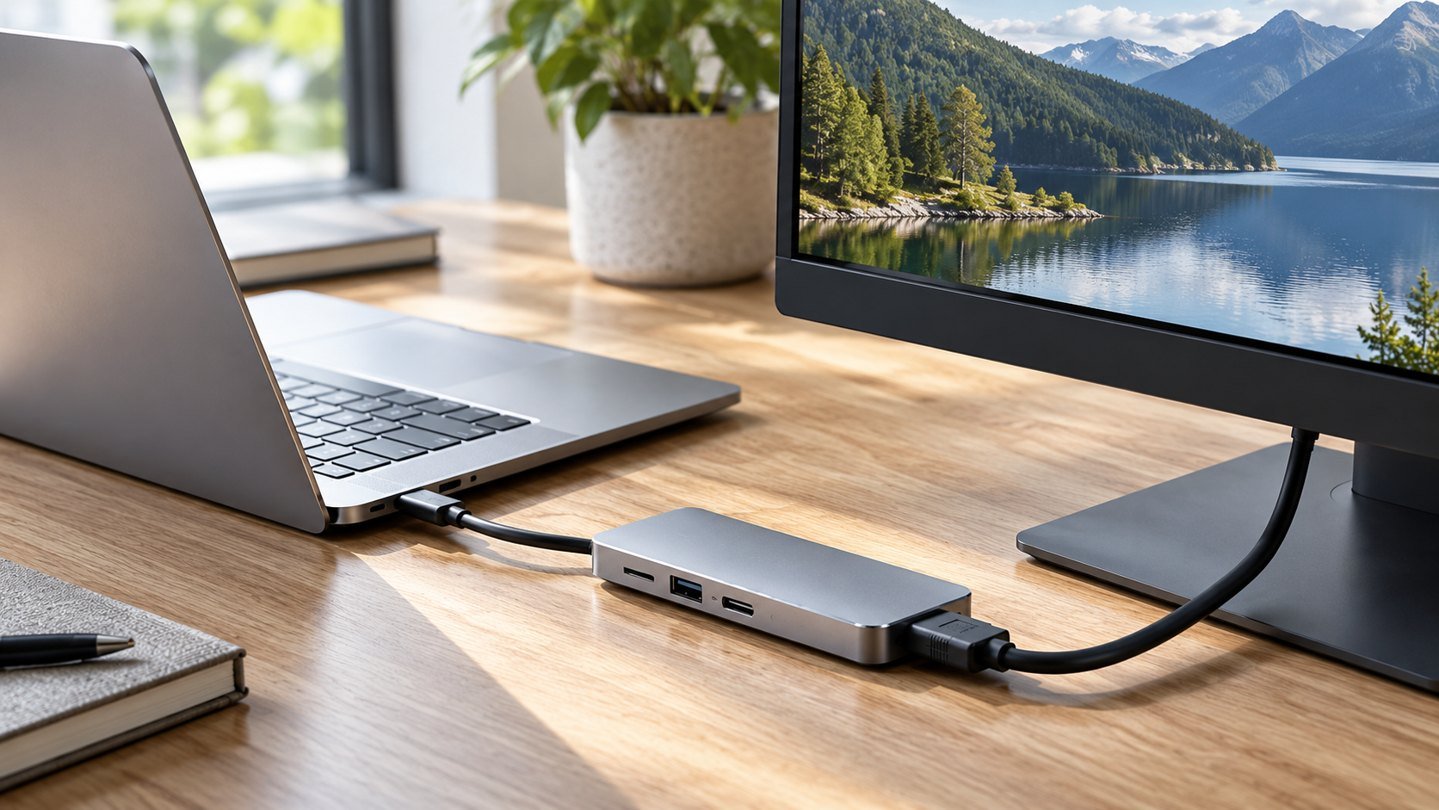
Prepared with AI assistance. Practical examples are illustrative, not hands-on test results. The featured image is an AI-generated editorial illustration of generic equipment, not an exact branded product photograph.
A USB-C plug can fit perfectly while the monitor stays blank. The shape of the connector does not tell you the full capability of the port, cable or adapter. Before buying another hub, identify which link in the display path is failing.
Start with a simple connection map
Write down the laptop model, the port used, the cable model, any adapter and the monitor input. Photograph the labels if needed. Your target is one supported path from computer to screen, not a collection of products whose titles all mention USB-C.
1. Confirm the screen has power and the correct input
Open the monitor’s own menu. If the menu does not appear, investigate power and the display itself. If it appears, select the input used by your cable. Automatic input detection can be convenient, but manually selecting the connection removes one uncertainty.
2. Check the laptop’s exact port specification
Look up your computer on its manufacturer’s support site. Confirm that the port you are using supports the intended external-display connection. Charging capability or ordinary USB data support does not establish video support. On computers with several similar sockets, identify the specific socket rather than assuming all behave alike.
3. Check the cable’s stated purpose
Use the monitor’s supplied cable where suitable, or a cable explicitly documented for the required video connection. A charging cable is not automatically a display cable. Inspect for visible damage and avoid pulling a connector sideways under the weight of an adapter.
Apple’s external-display troubleshooting guidance specifically notes that a cable or adapter can limit the supported resolution and refresh rate. Apply the same habit to the whole connection chain: confirm the capability of each component using its documentation.
4. Remove the hub for one controlled test
Where the laptop and display support a direct connection, try it. Disconnect nonessential peripherals during the test. If a direct path works but the hub path does not, you have narrowed the investigation; you have not yet proved the hub is defective.
5. Use an actual video output on the hub
A USB-C data socket on a hub may not output video. For example, Anker’s A8383 documentation says its USB-C port does not support video output. Its display connection is HDMI. Connecting a USB-C monitor to the data socket will not create a video path.
This is why a port map is more useful than counting sockets. Mark each as power input, data or display output before ordering any adapter.
6. Try a supported, less demanding display mode
If the display is detected but behaves poorly, check the operating system’s display settings and the documented limits for the complete setup. Start with a mode supported by every component, then increase only within those limits. Avoid changing several settings simultaneously; record which change altered the result.
7. Reconnect and test sleep/wake
Follow the manufacturer’s reconnection guidance, then test a restart and a normal sleep/wake cycle. A setup that works once during installation but fails every morning is not finished. Use official support instructions for firmware or driver updates instead of random download sites.
Record what you learned
| Test result | Useful next investigation |
|---|---|
| Direct connection works | Hub capability, output choice or adapter |
| Another cable works | Original cable specification or condition |
| One mode works | Resolution and refresh-rate limits |
| Fails only after sleep | Official software and reconnection guidance |
Buy only the missing capability
If you establish that your hub lacks the required output, shop for that output and verify host compatibility. If the existing cable is wrong, replacing the whole dock may waste money. The Anker 555 is a candidate for certain single-HDMI setups, not a universal answer to a blank screen.
Keep the connection map with your purchase record. It makes a support request clearer and prevents repeating the same compatibility mistake.
Common questions
Does USB-C always carry video?
No. Check the computer port, cable and device documentation.
Will a more powerful charger fix a blank screen?
Only if insufficient power is the actual issue in a supported setup. It cannot add a missing video capability.
Should I install a driver immediately?
First identify the hardware and follow its official instructions. Some display technologies require software; others do not. Do not guess.
Explore suitable equipment
These are options to investigate, not a ranked list of tested winners. Specifications, compatibility and availability can change. For readers outside the US, compare local delivery, warranty and total cost.
- Search Amazon.com for Anker 555 A8383 USB C hub
- Search Amazon.com for USB C video cable DisplayPort Alt Mode
Keep building your setup
- Anker 555 USB-C Hub: Check These Details Before You Buy
- Two Monitors on a MacBook: Check This Before Buying a Dock
- Portable Monitor for Travel: Is the Extra Screen Worth Carrying?