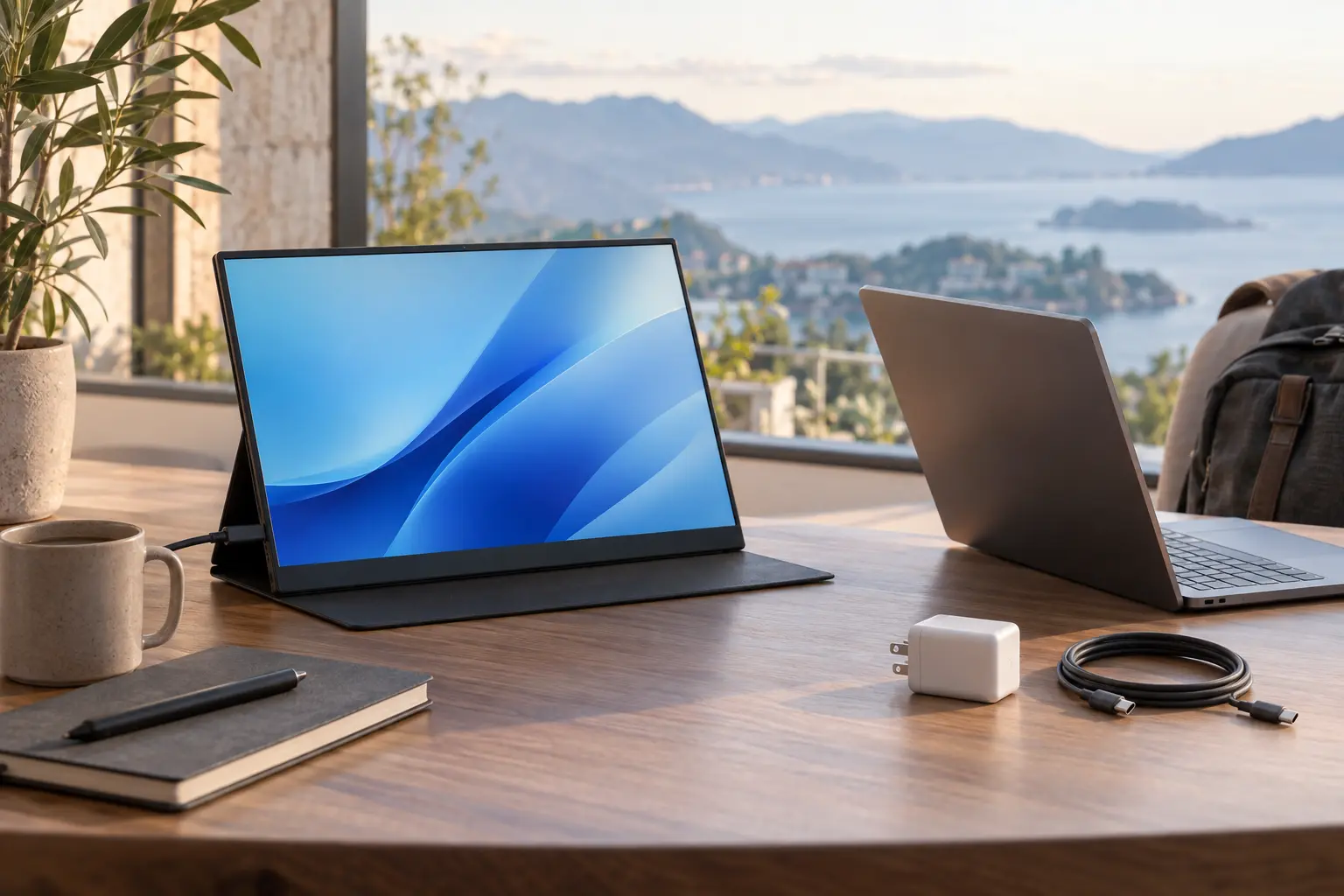
Prepared with AI assistance. Examples and checklists are illustrative guidance, not hands-on test results or hiring guarantees. The accompanying image is an AI-generated editorial illustration.
Quick answer: A one-cable portable-monitor setup works only when the computer port, monitor port and cable support the required video connection, and the monitor receives sufficient power. The USB-C connector shape alone does not establish any of those capabilities.
A screen that lights up but says “no signal” has a different symptom from one that repeatedly turns off. Before buying a more powerful charger, separate the video path from the power path.
Check three parts of the connection
| Part | What to verify | Where to check |
|---|---|---|
| Computer port | Supported display output and available peripheral power | The exact model’s technical specifications |
| Monitor port | Which input accepts video and which accepts power | The monitor manual and port labels |
| Cable | Video compatibility and suitable power capability | The cable specification, not just its connector |
Microsoft’s USB-C troubleshooting guidance distinguishes feature compatibility, display connections and insufficient power. USB-IF also documents different cable capabilities. These distinctions are why “it fits” is not a sufficient compatibility test.
Understand the common wiring patterns
USB-C for video and power
Some portable monitors are designed to receive both through one connection to a compatible computer. Confirm that the chosen laptop port supports the monitor’s display method, commonly DisplayPort over USB-C for compatible models. Use the supplied or explicitly compatible cable as your first baseline.
USB-C video with separate monitor power
Other setups use one connection for the video path and a second supported input for power. This can help isolate a power limitation, but the correct wiring is model-specific. Do not assume that two similar-looking monitor ports have interchangeable roles.
HDMI video with separate power
Many portable monitors accept HDMI or mini-HDMI as an alternative video input and require a separate power connection in that configuration. Follow the monitor manual. Having an HDMI image path does not tell you which USB-C input or charger is appropriate.
Do not confuse charger size with delivered power
The number on a charger is not a promise that every connected device receives that amount. The charger, cable and device must support an appropriate arrangement. On a multiport charger, connecting another device may change how power is shared; consult that charger’s documented behaviour.
Likewise, a high-wattage charging cable is not automatically suitable for monitor video. Check video support separately. There is no single wattage recommendation that fits every portable display.
Diagnose one variable at a time
- Record the symptom. Is the screen unpowered, displaying “no signal,” flickering, or disconnecting only under certain conditions?
- Check the manual. Confirm input selection, correct port roles and the supported power source.
- Simplify the path. Connect directly to the compatible computer port where supported, removing a dock or adapter from the test.
- Use a known-compatible cable. Do not substitute an unknown charging cable merely because it fits.
- Test approved external power. If the monitor supports it, use the recommended power input and supply.
- Repeat the same workload. Record whether the symptom changes before replacing another component.
Save work before changing connections. Stop using a damaged cable or connector and follow the manufacturer’s support guidance if there is unusual heat or visible damage.
A worked troubleshooting example
Illustrative scenario: A portable screen works through a direct laptop connection but disconnects when routed through a hub. The owner tests the direct connection with the same monitor settings, then checks the hub’s display and power specifications.
The result narrows the investigation to the changed connection path. It does not prove that all hubs are unsuitable or that the monitor needs replacement. A supported external power arrangement or a different compatible connection may resolve the issue, but that requires testing on the actual equipment.
Before buying another accessory
- Write down the exact laptop, monitor and hub model numbers.
- Confirm the monitor’s input-power requirement and supported connection patterns.
- Check cable video capability separately from its charging rating.
- Confirm any promised pass-through charging in the monitor’s own specification.
- Check the seller’s compatibility details and return terms.
Your next step
Draw your intended connection on paper and label video and power separately. If you cannot identify both paths from the product documentation, resolve that uncertainty before ordering another cable, charger or monitor.
Sources and further reading
Sources checked during preparation on 26 September 2026. Product features and policies can change; consult the current source for your situation.