Affiliate disclosure: As an Amazon Associate I earn from qualifying purchases. Shopping buttons open Amazon.com searches; check the exact item and regional delivery before buying.
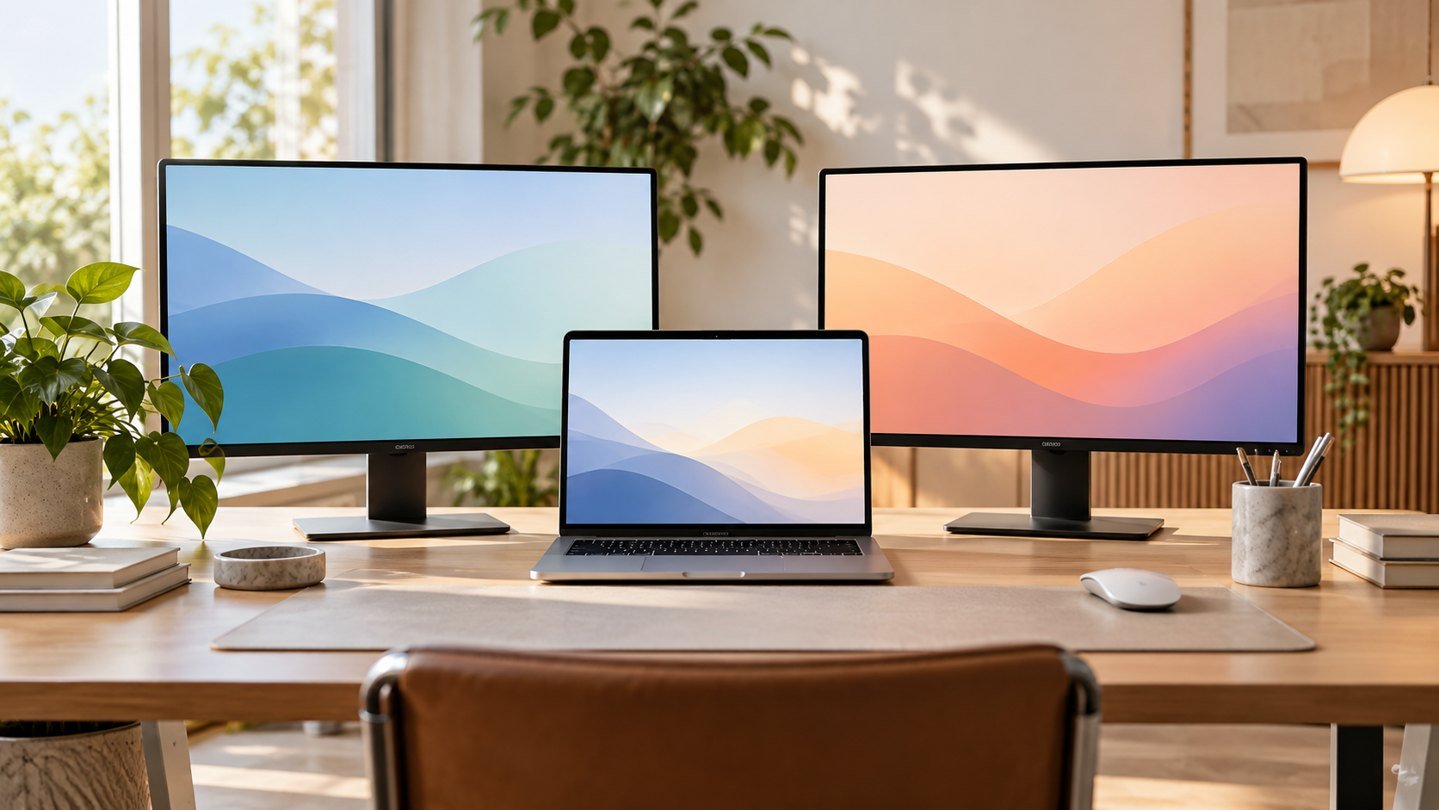
Prepared with AI assistance. Practical examples are illustrative, not hands-on test results. The featured image is an AI-generated editorial illustration of generic equipment, not an exact branded product photograph.
Two HDMI sockets on a dock do not prove that your MacBook can show two independent external desktops through it. Start with the Mac model, then choose the connection method. Shopping in the opposite order can leave you with expensive equipment that only mirrors the same picture.
Find the exact Mac first
Open About This Mac and record the model and chip. Then consult Apple’s specifications and display-support article for that model. Do not use a tutorial for a different generation as proof of compatibility. Also record whether you want the laptop’s own screen to remain active.
Apple’s current MacBook Air guidance distinguishes display support by model and by display resolution and refresh rate. That is the central buying rule: the label MacBook Air alone is not enough information.
Define the desktop you actually want
Write a one-sentence requirement: I want two external displays showing separate applications, with the laptop open, at my chosen resolution and refresh rate. Replace each part with your real requirement. Mirrored screens, an extended desktop and a closed-lid arrangement are different outcomes.
| Item to record | Why it matters |
|---|---|
| Laptop open or closed | Can affect supported arrangements |
| Monitor resolution and refresh rate | Must fit the complete path |
| Two independent desktops or mirroring | Prevents buying the wrong dock |
| Work-device software restrictions | May rule out driver-based options |
Separate native video from software-assisted display
A dock can expose video connections without increasing the computer’s native display allowance. Some products use USB graphics technology that needs software and permissions. If considering that route, read the dock maker’s current compatibility documentation and confirm approval on a managed work Mac.
Do not treat every dual-HDMI dock as equivalent. Ask the vendor to confirm the precise Mac model, operating system, two monitor models and intended mode. A written compatibility answer is more valuable than a broad marketing phrase.
Build the full price, not just the dock price
Include the charger if it is not supplied, appropriate cables and any adapters. Consider where the dock sits and how many connections remain attached when you take the laptop away. If a monitor already provides a suitable connection and power path, a large dock may be unnecessary.
A single-display hub can still be useful, but buy it for that role. The Anker 555 A8383 has one HDMI output; it is not a two-HDMI solution. Our dedicated hub guide covers that simpler arrangement.
Test independent output after delivery
Open different windows on each screen and check that each can display a separate workspace. Confirm the settings for resolution and refresh rate instead of assuming the operating system chose your preferred mode. Test charging during your normal workload and reconnect after taking the laptop away.
Run the same checks after sleep. Also test the apps that matter to you, especially if the solution depends on additional display software. Keep packaging and confirm return terms until the actual arrangement is proven.
When one larger screen is a better purchase
If the second monitor would mostly hold a rarely used window, try arranging applications on your current display first. A second screen adds cables, desk footprint and another surface competing for attention. It earns its place when it supports a repeated task, such as comparing a source document with an editing window.
A portable display can be useful for occasional work, but it still needs a compatible connection. It does not bypass the computer’s display limitations just because it is smaller.
Common questions
Can any USB-C dock add two monitors?
No. Verify the Mac, dock technology and intended display arrangement together.
Will closing the lid always solve the problem?
No. Supported closed-lid arrangements depend on the specific model and setup. Follow the matching Apple guidance.
What should I send a seller before buying?
Send the exact Mac model, chip, operating system, monitor models, desired modes and whether the laptop remains open. Ask whether the screens extend independently and whether extra software is required.
Explore suitable equipment
These are options to investigate, not a ranked list of tested winners. Specifications, compatibility and availability can change. For readers outside the US, compare local delivery, warranty and total cost.
- Search Amazon.com for MacBook dual monitor docking station
- Search Amazon.com for USB C HDMI monitor cable
Keep building your setup
- Anker 555 USB-C Hub: Check These Details Before You Buy
- USB-C Monitor Not Working? Check These 7 Things First
- Portable Monitor for Travel: Is the Extra Screen Worth Carrying?