Affiliate disclosure: As an Amazon Associate I earn from qualifying purchases. Shopping buttons open Amazon.com searches; check the exact item and regional delivery before buying.
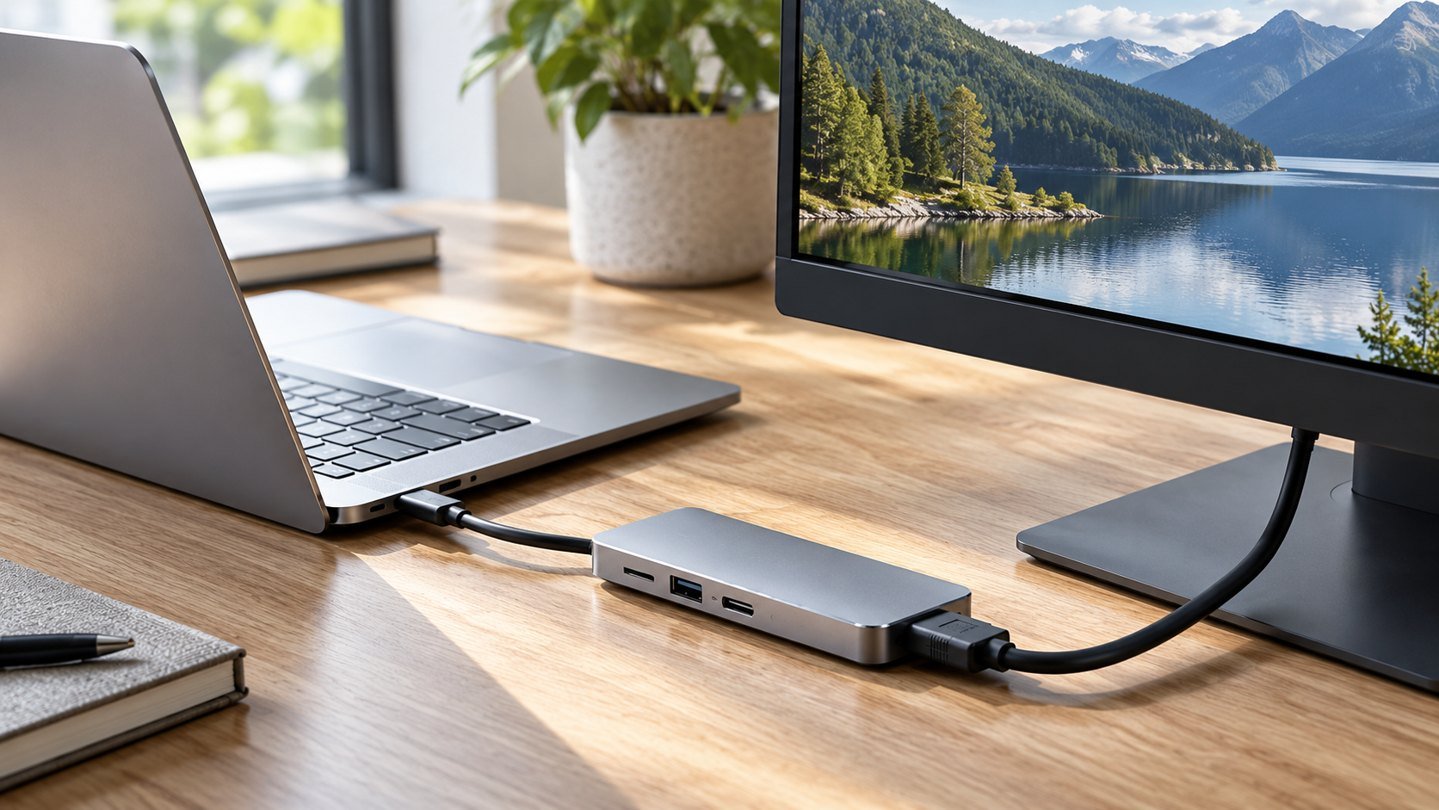
Prepared with AI assistance. Practical examples are illustrative, not hands-on test results. The featured image is an AI-generated editorial illustration of generic equipment, not an exact branded product photograph.
Quick answer: The Anker 555 USB-C Hub is worth considering when a compatible laptop needs one HDMI display plus everyday data and network connections. Do not buy it merely because your computer has a USB-C socket. Check the computer’s video capability, charging requirements and the exact ports you need.
A hub purchase often goes wrong in a small but expensive way: the connector fits, yet the intended setup does not work. The most useful shopping list therefore starts with your laptop model and peripherals, not the largest “in-one” number on the box.
This guide focuses on the Anker 555, model A8383. Other Anker hubs can look similar while offering different connections. It is a research-based guide rather than a hands-on speed test.
The important specifications
Anker’s official A8383 product page lists one HDMI output rated up to 4K at 60Hz, USB data ports, Gigabit Ethernet and SD/microSD slots. It specifies up to 100W power input with up to 85W available to the laptop, reserving power for hub operation. A charger is not included.
Anker also states that the hub’s USB-C data port does not provide video output. That distinction is essential if your plan is to connect a USB-C monitor through that port.
Make a connection map before ordering
Write down every device you intend to connect and what it needs. A keyboard is a data device. A display needs an appropriate video path. A laptop charger needs a supported charging path. Similar-looking sockets do not make those roles interchangeable.
| Device or task | Detail to verify |
|---|---|
| External monitor | Laptop video support, HDMI input and desired mode |
| Laptop charging | Laptop requirement, charger output and suitable cable |
| External SSD | Data connection and the slowest link in the chain |
| Wired network | An accessible network connection and Ethernet cable |
| Memory card | Card format and the slot you actually need |
If your plan involves two external monitors, stop and compare products designed for that requirement. A hub with one HDMI connector should not be purchased on the assumption that it becomes a dual-monitor dock with a simple extra adapter.
Understand the charging budget
The wattage printed in a hub’s title may describe input rather than power delivered to your laptop. Compare the laptop’s normal charger with the hub’s stated output, then account for the charger and cable you will use.
A setup can appear to charge during light work yet behave differently under a demanding workload. When you receive the hub, test it with the applications and peripherals you normally use. Check the computer’s charging indication rather than assuming the presence of a power cable proves the setup is adequate.
If you already own a suitable charger, include that in your cost comparison. If not, compare the whole setup’s cost rather than the hub alone.
A USB-C port is not a compatibility guarantee
Find your computer’s exact model and port specifications on its manufacturer’s support site. An older laptop with a different port type should not be assumed compatible simply because an adapter exists.
For a display, check the required video support and desired resolution and refresh rate across the computer, hub, cable and screen. A claim on one component does not establish the performance of the complete chain.
FitOnear’s office monitor buying guide is useful if you are also choosing the display. Decide on the full connection path before buying either accessory.
Hub or desktop dock?
A compact hub suits someone who needs a small set of extra connections and can live with the resulting cable arrangement. A desktop dock becomes more interesting when you routinely connect many peripherals or need a particular multi-display configuration.
Neither category wins automatically. Count the cables that will connect each morning, consider where the equipment will sit and compare the setup you actually need. Extra ports have little value if they serve devices you do not own.
For desks with limited room, combine that planning with FitOnear’s small-space setup guide.
Test each function separately
Start with the hub and one low-complexity peripheral. Add the monitor, then network, then storage, then charging. If something stops behaving as expected, disconnect the last addition and check its requirements.
Finally, test the complete setup through a restart and a sleep/wake cycle. Keep the packaging until you have checked the actual combination you bought the hub to support.
Frequently asked questions
Can the USB-C data port drive my monitor?
Anker states that this model’s USB-C data port does not support video output. Plan around the specified HDMI output, or choose different hardware for your display requirements.
Does a 100W input mean my laptop receives 100W?
No. For the A8383, Anker specifies up to 85W to the laptop after the hub’s power allocation. Your charger and cable must also meet the setup’s requirements.
Is this automatically compatible with every MacBook?
No. Check the exact MacBook model, ports, display support and charging needs. A broad “MacBook compatible” description is not a substitute for that check.
The buying decision
Shortlist the Anker 555 if its documented ports match a specific setup. Skip it if you need USB-C video output from the hub or a different display arrangement. The right hub is the one whose connection map matches yours without guesswork.
Product information checked September 19, 2026. Specifications, versions and availability can change. Confirm the exact item, seller, delivery destination and return terms before ordering. For readers outside the United States, check shipping, regional compatibility and local warranty coverage.