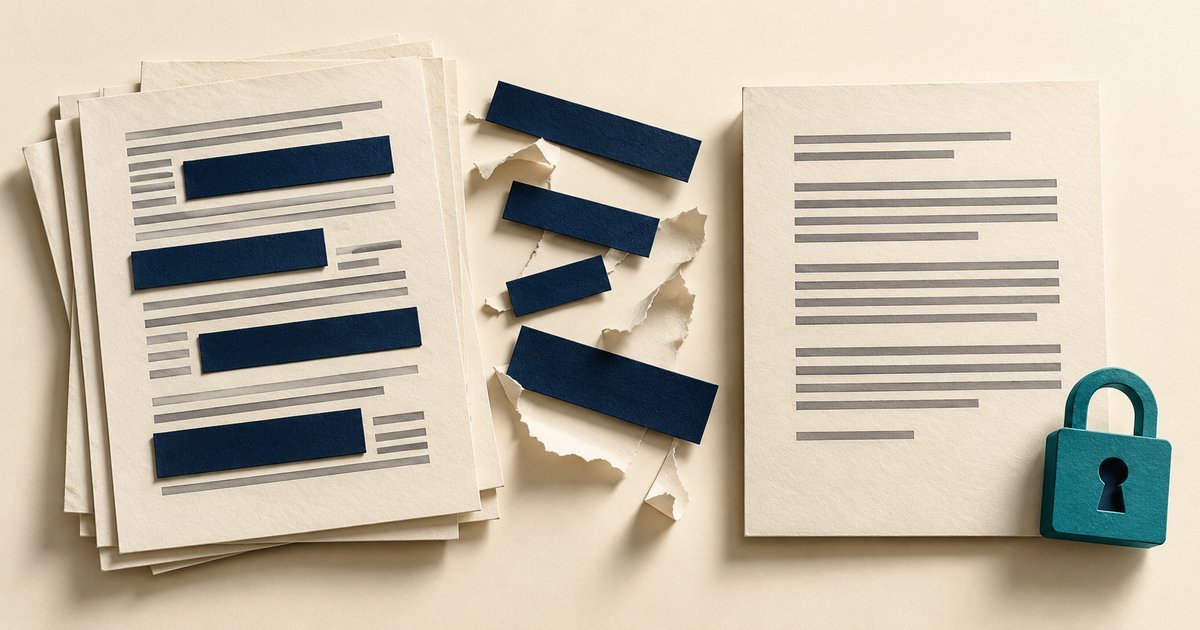
To redact a PDF, use a redaction tool that removes the selected content, apply the redactions, inspect hidden information, and verify the saved output. Drawing a black box, highlighting text, or cropping a page is not a reliable substitute.
This workflow is for ordinary document sharing: a support attachment, an example report, a supplier document, or a training handout. It helps you examine what you are actually sending. It is not a determination that a particular document may be disclosed; obtain the required permission before preparing a release copy.
Why a document can look safe and still contain the information
A PDF can contain more than the pixels you see. Searchable text may sit behind a scanned image. Comments, embedded files, document properties, or hidden layers may retain material outside the visible page. Adobe’s PDF sanitization guidance describes these hidden-content categories.
A rectangle added with an annotation tool can cover a name without deleting the name underneath. A crop can change the visible area without establishing that the cropped content has been removed. A password may restrict access to the whole file, but it does not remove the specific details you intended to withhold.
Think of two separate tasks: removing disallowed content and distributing the resulting file appropriately. Successful redaction does not make an unrestricted public link appropriate for every document.
| Action | Useful for | Does it establish redaction? |
|---|---|---|
| Draw a black rectangle | Visual annotation | No; content may remain underneath. |
| Crop the page | Change visible page area | No; removal is not established. |
| Apply genuine redactions | Remove selected content | Yes for selected material, subject to verification. |
| Sanitize the PDF | Remove selected hidden information | Complements visible redaction. |
| Set sharing permissions | Control who receives the file | No; it addresses access instead. |
Define the release before opening the tool
Write one sentence describing the recipient and purpose. For example: “Share the error explanation with the external support team, excluding employee identity, account details, and internal system addresses.” This is an invented example; use your own approved scope.
List the information that must be removed and the information the recipient still needs. Removing every date or field may make a document useless, while retaining an unusual job title or project description can still identify someone. Review context as well as obvious names.
For a recurring process, keep a short release checklist beside the file. FitOnear’s remote-work security checklist provides the wider account and device controls. If AI is involved in the drafting process, align the handling rules with your team AI policy.
Create a separate working copy
Preserve the source in approved storage. Create a working copy whose name makes its status clear. Avoid putting the sensitive person’s name or reference number into the release filename itself. A clean page inside a revealing filename is an avoidable mistake.
Keep originals and release copies in separate locations when practical. Do not prepare a sanitized PDF inside a folder that the recipient can browse alongside its source. FitOnear’s storage comparison explains why the choice of storage and the existence of a backup are separate decisions.
If you control the original Word document, remove unnecessary material there first and inspect it before PDF export. Microsoft’s Document Inspector guidance describes checking hidden and personal information on a copy. It also documents limitations. Inspecting the source does not replace checking the final PDF.
Apply redactions in a supported PDF editor
Adobe’s current Acrobat Pro redaction instructions use All tools → Redact a PDF, followed by selecting text and images, applying the changes, and saving. The save flow offers sanitization of hidden information. Menu labels and entitlement can differ across editions; confirm that you have an actual redaction capability.
- Open the working copy and activate the redaction tool.
- Mark the relevant text and image regions. Review every occurrence, including repeated headers, footers, captions, and attachments.
- Check the marked regions before applying them. Preserve required context, but do not leave partial identifiers accidentally visible.
- Apply the redactions. A marked preview is not the completed operation.
- Inspect or sanitize hidden information according to the release scope.
- Save a separate release file, close it, and reopen the saved output.
When a scan has an OCR layer, a visual inspection alone is insufficient. Confirm that the tool removes the selected region’s underlying text as well as the image content. The searchable-PDF guide explains why an invisible text layer may exist even when the page looks like a photograph.
If the file has a digital signature or protection, stop and establish the permitted workflow. Editing can affect signature validity, and a protected document may need an authorized source copy. Do not work around restrictions simply to finish faster.
Use a two-pass review
Pass one: inspect the visible pages
Scroll through the entire release file, including blank-looking pages and appendices. Check page count, missing margins, repeated names, images, watermarks, and form fields. Examine regions near the redaction boundaries at a higher zoom so a last digit or initial is not left exposed.
Then read the surrounding sentences as a recipient would. Could the retained description reveal the removed detail? For example, a unique project, a precise job title, and a specific date may identify the person even after the name is gone. Decide whether the remaining context fits the approved release purpose.
Pass two: inspect what can be retrieved
Search for the removed strings and meaningful variations, such as part of an email address or a reference suffix. Copy text from the relevant page into a plain-text editor. Inspect document properties, comments, layers, and embedded files where the editor exposes them.
These checks can catch common failures, but no single negative search proves complete removal. A search may miss an image-only value, an OCR error, or a differently formatted string. Use the genuine redaction operation, hidden-information inspection, and visual review together.
For consequential releases, have a second authorized person review the final saved file. Give the reviewer the release scope and the list of sensitive categories, not just “please check this.” Ask them to confirm the recipient’s required information is still understandable.
A practical release record
The following is a completed hypothetical example. It demonstrates how specific the record should be without storing the removed values in another widely shared document.
| Field | Example |
|---|---|
| Purpose | Explain a sample upload error to an external support team. |
| Removed categories | Personal names, account references, internal hostnames. |
| Preserved context | Error wording, operation sequence, non-sensitive timestamps. |
| Checks performed | All pages reviewed; removed strings searched; copied text checked; hidden information inspected. |
| Output | support-upload-example_v02_release.pdf |
| Sharing decision | Approved recipient-only support attachment. |
Do not paste the removed secrets into this release record. If a detailed internal audit record is required, keep it in the appropriate restricted system. The record accompanying a shared file should not recreate the problem the redaction solved.
Common traps when sharing the result
Sending the original attachment: close unused versions and attach the release file deliberately. Open the attachment from the draft message before sending it.
Sharing an editable source link: a clean PDF attachment does not help if the same message includes a link to the unrestricted source. Review every attachment and link together.
Relying on a screenshot: a screenshot may remove selectable text but can still visibly expose data, include application chrome, and reduce accessibility. It is not a general replacement for a controlled PDF release workflow.
Assuming a tool found everything: automatic pattern detection is useful for candidate matches, but unusual formats and contextual clues need human review.
Choose a redaction tool by the release you must produce
Before paying for another editor, test it with a harmless sample containing ordinary text, a scanned page with OCR, a comment, and a document property. Confirm that you can apply redactions, inspect hidden information, save a separate copy, and verify the result outside the editor. A demonstration on a simple paragraph does not establish how the tool handles every object in your real document.
Ask where processing occurs and which file types the tool supports. An online service may be convenient for public material but unsuitable for documents your organization restricts to approved systems. Check whether your current licensed software already offers the required workflow.
Keep the evaluation about observable behavior. “Secure PDF editor” is a marketing description, not a completed release check. If you cannot establish how a tool removes selected material or what remains in its output, use an approved alternative or ask your document-security owner for help. Do not compensate for uncertainty by adding more black rectangles.
Make the last check about the recipient
Before release, open the exact file the recipient will receive. Can they understand the issue? Can they access only the intended material? Is the filename appropriate? Has the agreed reviewer accepted this version?
Save this checklist beside your document workflow and try it on a harmless sample first. For a repeatable team procedure, use the AI-assisted SOP drafting method to organize approved steps while keeping review and release authority with a person.
Prepared with AI assistance and authoritative sources reviewed September 30, 2026. Examples are illustrative, not hands-on test results. The featured image is an AI-generated editorial illustration, not a product screenshot.