
To keep leading zeros in Excel, import the CSV and set identifier columns to Text before Excel converts them. Do not rely on double-clicking the file or adding zeros after the import. Keep an untouched source, check several known identifiers, and inspect the exported CSV as text before sending it anywhere.
This guide is for people moving product codes, employee IDs, reference numbers, or postal codes between systems. The goal is a repeatable import that preserves the original characters, including long identifiers that should never be used as numbers.
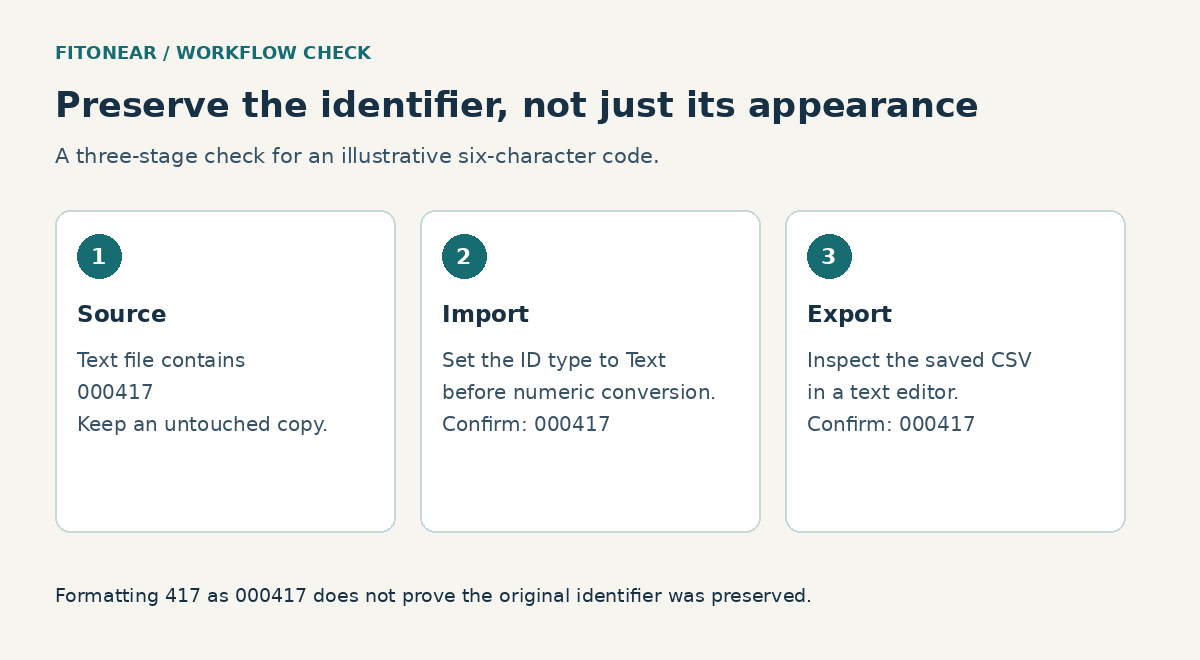
First decide whether the field is an identifier or a quantity
A quantity answers “how many?” An identifier answers “which one?” You can sensibly add two quantities, but adding two customer IDs produces no useful result. Store identifiers as text even when every character happens to be a digit.
Consider the hypothetical code 000417. If an application expects six characters, 417 is not an equivalent record key. Another system might deliberately allow both values as separate codes. Reconstructing a missing prefix without the source can therefore create a wrong match that looks plausible.
Microsoft documents both leading-zero removal and Excel’s 15-digit numeric precision limit in its guidance on keeping leading zeros and large numbers. An identifier with more digits can lose information if it is interpreted as a number. Widening the column or switching off scientific notation does not recover digits that have already changed.
| Example field | Import type | Reason |
|---|---|---|
| Product code 000417 | Text | Every character identifies the item. |
| Quantity 417 | Number | Arithmetic is meaningful. |
| Reference 123456789012345678 | Text | Exact digits matter more than numeric operations. |
| Delivery date | Text initially if ambiguous | Confirm the source date convention before conversion. |
Check the untouched CSV before opening it in Excel
Save a copy of the original export. Open that copy in a plain-text editor, not a spreadsheet application. Find one identifier whose expected value you know. Does it already contain its zeros? If not, investigate the exporting system first. An import setting cannot recover information absent from the source.
A CSV is a text file containing records and separators. It does not carry Excel’s cell-formatting instructions. Quotation marks can delimit a field containing a comma, but they are not a reliable instruction to spreadsheet software to preserve that field as text. The receiving application still decides how to interpret it.
Note the separator, character encoding, header names, and approximate record count. If you see semicolons instead of commas, choose that separator during import. If names appear garbled, pause and resolve the encoding before assessing the data. Formatting problems can occur together; solving one does not prove the others are absent.
For an orderly source-and-output folder, use the file naming convention described in this pack. For longer-term protection, FitOnear’s cloud storage and external-drive guide explains why synchronized access and independent backup serve different needs.
Import with Power Query and protect the conversion step
These steps describe desktop Excel where the Text/CSV importer and Power Query editor are available. Labels differ by version and platform. Microsoft’s text and CSV import instructions provide the supported routes; use the equivalent importer in your edition rather than assuming every menu is identical.
- Start a blank workbook. Choose Data → From Text/CSV, or the equivalent command under Get Data.
- Select your untouched CSV. Inspect the preview for correct column boundaries and readable characters.
- Choose Transform Data rather than immediately loading the preview.
- Examine Applied Steps. If an automatic Changed Type step has already converted an identifier to a number, remove or edit that conversion. Work from the earlier step where the original text is still present.
- Set identifier columns to Text. If prompted, replace the earlier conversion rather than merely converting an already damaged number back to text.
- Assign numeric types only to fields that genuinely need arithmetic. Convert dates only after confirming their convention.
- Close and load, then compare the imported identifiers with the source.
The order matters. Suppose an early step turns 000417 into the number 417. A later Text step produces the text 417, not the original six-character identifier. The correction belongs at the point where the loss occurs.
Save the working file as an XLSX workbook if you need to retain queries, formulas, multiple sheets, or formatting. When a new export arrives, refresh the query and recheck its results. A saved query is repeatable, but it still depends on source column names and structure remaining compatible.
Use a small acceptance sample
Before importing thousands of rows, make a harmless test CSV containing these invented values. The sample is a verification exercise, not customer data. Include separate rows for the two short identifiers so you can see whether the importer wrongly merges their meaning.
| Source value | Expected loaded text | What it tests |
|---|---|---|
| 000417 | 000417 | Leading zeros |
| 417 | 417 | Variable-length codes |
| 123456789012345678 | 123456789012345678 | Long identifiers |
| 12E5 | 12E5 | Scientific-notation-like codes |
| 03-04 | 03-04 | Date-like codes |
Compare characters, not alignment or appearance. Excel often aligns text and numbers differently, but formatting can override that visual cue. Inspect the formula bar, compare character lengths, and use a case-sensitive comparison such as EXACT against a separately preserved text value if case is significant.
Also compare total record counts, blank identifiers, and duplicate identifiers. A file can preserve zeros while dropping a row because the wrong delimiter or header handling shifted the structure. If these identifiers later feed a lookup or calculation, use the AI formula verification workflow to test the downstream result as well.
Automatic conversion settings can help, but are not the whole workflow
Some current Excel editions expose controls for automatic conversions. Microsoft’s data import and analysis options describe switches for leading zeros, long numbers, scientific notation, and date-like strings. Availability depends on the installed edition and build.
If you use these controls, document them with your import procedure. Do not assume a colleague’s computer has the same settings. A query with explicit column types is easier to review than an undocumented dependency on one person’s preferences.
Keep an eye on what remains intentionally numeric. Turning every column into text may protect identifiers, but it can also stop arithmetic, change sorting behavior, or cause a later system to reject an amount. Set types by column purpose instead of treating “all text” as a universal final format.
Why common repairs fail
Custom formatting changes appearance
A custom format can display the number 417 as 000417. That may be useful in a controlled report, but it does not establish what the original identifier was. It also does not give every receiving application a text schema. Verify the actual exported bytes and the destination’s interpretation.
Padding assumes a fixed length
A formula that pads to six characters is valid only when an authoritative rule says all codes have six characters. Applying it to a mixed-length field can turn a correct short code into a different code. If you cannot establish the rule, re-export instead of guessing.
Changing the format after loss is too late
Formatting an already rounded long number as Text preserves the rounded result. Restore from the original export. Keep the damaged workbook separate so nobody mistakes the attempted repair for the source of truth.
When the file contains work information, use approved storage and sharing routes from the remote-work security checklist.
Document the import contract for the next person
For a recurring file, keep a short column specification beside the query. It should identify each field, its meaning, its expected type, whether it may be blank, and any rule about length. For example, “Ticket ID: text, required, variable length, no arithmetic” prevents a future maintainer from converting the column back to numbers because it looks numeric.
Define what happens when the source changes. A new optional column may be harmless, while a renamed identifier column can break the query. If the exporter changes its date convention, an apparently successful refresh can produce incorrect dates. Treat a changed header, delimiter, or field meaning as a reason to review the import.
Keep one small acceptance sample that contains no real personal data. Ask a colleague to run the documented process with it. If they get the expected identifiers without changing local preferences or guessing a type, you have a transferable workflow. Record the remaining assumptions so a future application upgrade has something concrete to check.
Before you send the CSV onward
Export only the intended worksheet. Open the exported file in a text editor and repeat the sample checks. Then, if possible, import a small set into a test destination and confirm exact matches there. Do not judge the export by double-clicking it again in Excel: that can repeat the same conversion you were trying to avoid.
- The original export remains unchanged.
- Identifier columns are explicitly Text before conversion.
- Leading-zero, long, date-like, and letter-E examples match.
- Record counts and required fields reconcile.
- The receiving system accepts the sample without changing the identifiers.
- The working workbook and delivery CSV have distinct names.
Choose one recurring import and write down its column types today. If a new tool is being proposed just to solve this problem, compare its real maintenance cost with an explicit import process using FitOnear’s free-versus-paid software framework.
Prepared with AI assistance and authoritative sources reviewed September 30, 2026. Examples are illustrative, not hands-on test results. The featured image is an AI-generated editorial illustration, not a product screenshot.