To make a scanned PDF searchable, run optical character recognition, save a new PDF, and test the saved file in a second viewer. Searching successfully inside one app is useful, but it does not by itself prove that the downloaded document contains a portable text layer.
Optical character recognition, usually shortened to OCR, converts the shapes of printed characters into machine-readable text. It helps with scanned manuals, receipts, archived correspondence, and study material. It does not certify that every word, number, table, or reading order is correct.
Identify which kind of PDF you have
Try selecting a sentence and copying it into a plain-text editor. Then search for a distinctive word. If neither works, the page may consist only of an image. If copying produces strange text, a text layer may exist but be inaccurate or badly encoded. A PDF can also mix normal text pages with scanned pages.
Do this on several pages, not just the cover. A digitally created contents page can hide the fact that the rest of the file is scanned. Conversely, an image-heavy cover does not mean the entire document needs OCR.
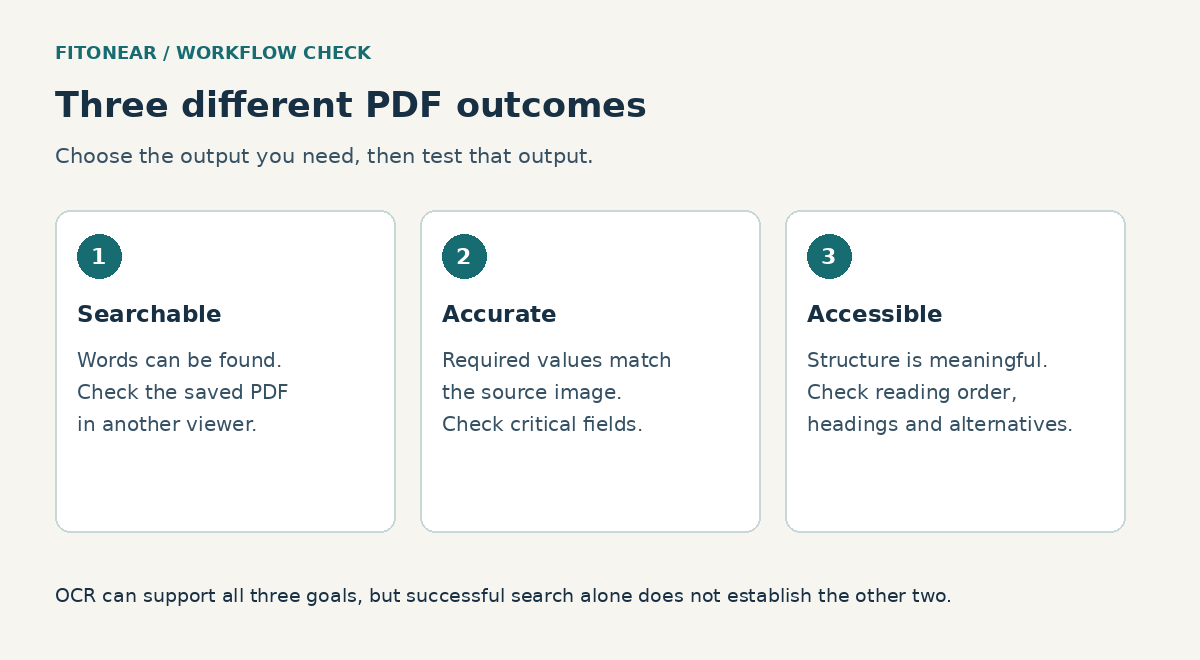
Before selecting a tool, decide what you need to leave with. A searchable PDF retains the page appearance while adding usable text. Extracted text is a separate output that you may paste into a document. An editable conversion tries to rebuild layout. These are different jobs, with different quality checks.
| Need | Useful route | Verify |
|---|---|---|
| Search the same PDF elsewhere | OCR with a saved PDF output | Search and copy in another viewer |
| Reuse a short passage | Text extraction from an image or printout | Compare the passage with the image |
| Edit a document extensively | Conversion followed by manual cleanup | Layout, wording, tables, and page order |
| Provide an accessible document | OCR plus structure and accessibility work | Headings, tags, reading order, and alternatives |
Prepare a readable scan before running OCR
Work from the clearest available original. Straighten tilted pages, include their edges, and avoid shadows across text. For a phone capture, stabilize the device and check that the whole page is in focus. A tiny receipt photographed from far away gives the software fewer useful details than a close, sharp capture.
Inspect the source at a comfortable zoom. Can you confidently distinguish a zero from a letter O, or a one from a lowercase l? If you cannot, the recognition engine may also struggle. Rescan the page when possible rather than repeatedly applying different software to an unreadable image.
Keep color when it conveys meaning, such as colored annotations. Preserve the original before cropping, compressing, or cleaning it. Aggressive cleanup can remove faint punctuation or handwritten additions that matter. Your working copy should remain traceable to the original.
FitOnear’s storage and backup comparison can help you choose where to retain those originals. Use a clear source, working, and release naming convention so the OCR copy does not silently replace the scan.
A supported Acrobat workflow
Adobe’s Paper to PDF guide describes opening the scan, choosing Scan & OCR, enhancing the image when needed, and using Recognize text. Its web workflow also provides OCR through document conversion. Access depends on the product and account; this is a researched workflow, not a claim that every Acrobat edition includes the same functions.
- Open a copy of the PDF in the supported application.
- Choose the page range deliberately. Confirm that you are not processing only the first page.
- Select the appropriate recognition language where the tool offers that choice.
- Run recognition and inspect several representative pages.
- Save a separate output with a name that identifies it as the searchable copy.
- Close the file and open the saved output in another viewer.
For mixed-language documents, verify each script separately. A page with English labels and Arabic body text can appear successful because the English words are searchable while the Arabic is not. Do not use one English search as proof of complete recognition.
Do not upload confidential material to an unfamiliar online converter merely because its interface is convenient. Choose a processing route allowed for that document. FitOnear’s remote-work security baseline is a useful companion when files move between personal devices and work accounts.
OneNote and OneDrive serve different reuse needs
Microsoft documents copying text from pictures and file printouts in OneNote. This can be appropriate when you need a passage of text. It is not the same promise as producing a searchable PDF that another application will recognize.
Microsoft also describes OCR in OneDrive’s Android and iOS apps, with a rollout caveat. Its instructions cover recognizing text in a scanned PDF so it can be selected and copied. If the command is missing, check supported account, app version, and rollout availability instead of assuming the PDF is defective.
Choose the output first, then the tool. If you only need two paragraphs for personal notes, extraction may be enough. If colleagues need to search the same archived manual offline, verify the saved PDF’s behavior outside the original app. FitOnear’s software cost guide provides a framework for judging whether a paid workflow is justified by repeated use.
Run the five-point acceptance test
Use a small test record for each important document. The following example describes an invented office manual with twelve pages. Adapt the checks to your file, but keep the evidence specific enough that someone else can repeat them.
| Check | Test | Pass condition |
|---|---|---|
| Page completeness | Compare all twelve page thumbnails | No missing, duplicated, or rotated page |
| Search | Search one uncommon word on pages 2, 6, and 11 | Correct occurrences found |
| Copy order | Copy a paragraph and a two-column section | Text follows the intended order |
| Critical characters | Compare reference codes and dates | Exact characters match the scan |
| Portability | Open the saved file in another viewer | Search and selection still work |
A failed check is a useful diagnosis. If ordinary words work but codes do not, inspect character recognition. If text is accurate but interleaved, investigate column order. If it works only in the original app, establish whether the app maintained an internal index rather than writing a portable text layer.
For a high-consequence field, sample checking is not enough: compare every required value. An OCR-generated spreadsheet of quantities or identifiers needs a separate validation pass. Searchable archives and accurate structured data are different deliverables.
Handle tables and handwriting conservatively
Tables are difficult because the relationship between cells matters as much as the characters. A number copied under the wrong heading can be more misleading than an obvious spelling error. After extraction, compare complete rows, headers, units, and totals. Keep a page reference beside any value you use in another document.
For handwriting, treat recognition as a draft transcription. Ambiguous strokes, crossed-out text, and marginal notes require human judgment. Do not fill in an unreadable word just because a sentence would sound smoother with it. Mark uncertainty in your working notes and return to the source or its author.
Never use OCR output as evidence that a signature or stamp is authentic. Recognition and document authenticity are separate questions. Preserve important originals and follow your organization’s document-handling rules.
Searchable does not mean accessible or safe to share
A text layer can make search work while a screen reader still encounters a confusing order. The document may lack headings, table structure, or meaningful image descriptions. When you control the source, the Word-to-accessible-PDF workflow explains why structure should be addressed before export.
OCR also makes previously image-only names and reference numbers easier to find. If a file must be redacted, use a tool that removes both visible content and associated text, then check the final output. A black rectangle placed over the scan does not demonstrate removal of an underlying OCR layer.
Scale the process without hiding difficult pages
When processing a folder of documents, classify a small sample before starting the batch. Separate clear printed pages, mixed-language pages, tables, and handwriting. A workflow that performs well on a clean letter may be unsuitable for a faded invoice with narrow columns.
Maintain a simple exception list: filename, page number, issue, and required action. “Page 7: reference code unclear; compare original paper” is more useful than labeling the entire file low quality. It also lets a reviewer concentrate on the parts that need human judgment.
Check that batch outputs correspond to the expected inputs. Compare filenames and page counts, and look for failures that the tool reported but did not stop the batch for. Do not discard the originals after seeing a completion message. For an archive used only for discovery, sampling may be appropriate; for extracted values used in a decision, review every consequential field. Choose the assurance level based on the intended use, not the convenience of the batch button.
Build a repeatable archive routine
For recurring work, keep four pieces together in approved storage: the original scan, the searchable output, a brief acceptance record, and the processing date. Record the tool and any pages requiring manual review. That is enough to make a later correction understandable without creating a complex document-management project.
Start with one representative file containing a normal page, a table, and a difficult scan. Run the five checks before processing the rest of the archive. A workflow that passes a realistic sample is a better foundation than a large batch whose accuracy nobody has examined.
Prepared with AI assistance and authoritative sources reviewed September 30, 2026. Examples are illustrative, not hands-on test results. The featured image is an AI-generated editorial illustration, not a product screenshot.