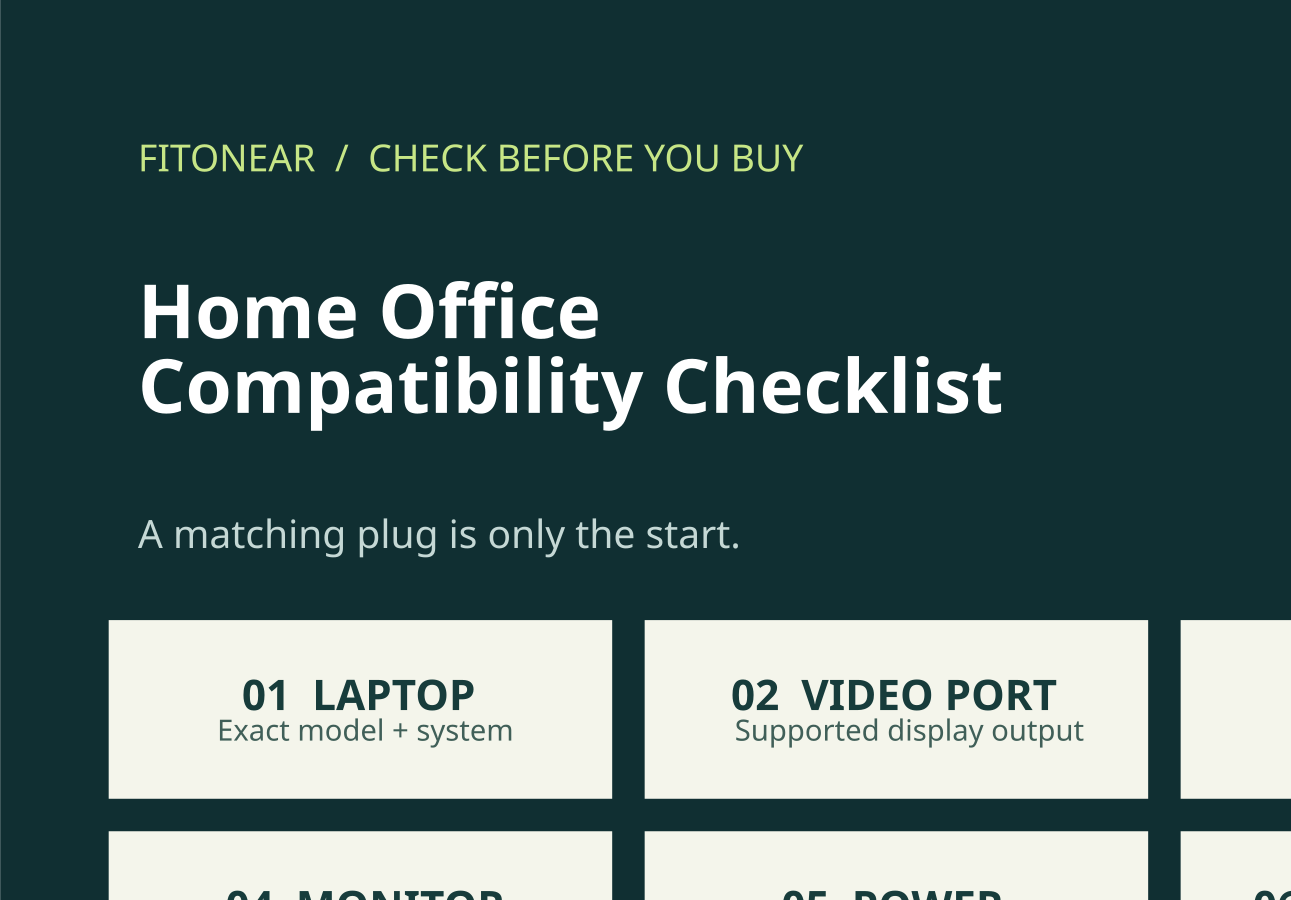
Before buying more home-office gear, check the whole connection—not just the connector. Use this home office compatibility checklist to plan a setup, isolate an existing problem and decide what needs replacing. It is free to use; no purchase or email address is required.
FITONEAR • CHECK BEFORE YOU BUY
Model → Port → Cable → Display → Power → Test
A matching plug is the start of the check, not the result.
This is a planning worksheet based on manufacturer guidance, not an automatic compatibility certification or a report of hands-on product tests. The original diagram summarizes the checks; it is not a product photograph.
Record your setup before buying
Write down the exact laptop model, operating system, dock model, monitor inputs and cable model. Add the resolution, refresh rate and whether you want the laptop screen to remain active. Keep a photo of the port labels with this note.
1. Check the complete display path
A USB-C connector is not a compatibility guarantee. Confirm the computer’s documented video output, the cable’s video capability and the monitor’s supported input. A power-only or data-only port cannot be assumed to carry a display signal.
2. Confirm two-monitor support
Check the exact Mac or PC model’s supported display count and modes. Two video sockets on a dock do not establish two independent desktops. If the solution needs display software, confirm operating-system compatibility and approval on a managed work computer.
3. Separate power from video
For a portable monitor, identify the video input and any separate power input. Follow the monitor manual’s power requirements. A higher-rated charger cannot add missing video support, and a charging cable is not automatically a video cable.
4. Test the camera and lighting together
Make a local test recording in your usual room before an important call. Compare one lighting condition at a time. If you see bands, check the camera’s supported anti-flicker controls; if your face is dark, test light position instead. Also confirm that the microphone and speaker selected in the call app are the ones you intend to use.
5. Check physical fit and return terms
Measure the available space, monitor housing and webcam position before adding a light bar or mount. Check that cables have enough slack for normal movement. Verify the exact product variant, seller, regional warranty, delivery and return terms.
6. Accept the setup only after a repeat test
Open different windows on each intended display, confirm the selected resolution and refresh rate, and test your normal call app. Repeat after sleep/wake and after unplugging and reconnecting. Record what passed, what failed and the one change that affected the result.
Copy or print your setup worksheet
Copy the table into your notes or use your browser’s Print command. Mark each item confirmed, needs checking, or not applicable. An unknown item remains unknown until you check the matching documentation or test the actual equipment.
| Check | Your evidence or model | Status |
|---|---|---|
| Laptop model / chip / OS | ________________ | ________________ |
| Computer port and documented video output | ________________ | ________________ |
| Monitor model and selected input | ________________ | ________________ |
| Cable model and video capability | ________________ | ________________ |
| Dock model and actual display outputs | ________________ | ________________ |
| Required screen count / mode / laptop lid state | ________________ | ________________ |
| Monitor power input and required supply | ________________ | ________________ |
| Camera, lighting and microphone test | ________________ | ________________ |
| Physical fit / cable slack / return terms | ________________ | ________________ |
| Sleep, reconnect and normal-workload test | ________________ | ________________ |
Choose the guide for your next check
- USB-C monitor not working — Separate power, no-signal and dock-only failures.
- Two monitors on a MacBook — Complete the model-and-dock compatibility brief.
- Portable monitor power requirements — Map the video and power paths separately.
- Webcam flickering and lighting bands — Use a repeatable camera and lighting test log.
- ScreenBar Halo vs desk lamp — Choose lighting by task area and monitor fit.
For furniture, desk layout and a wider plan, return to the Home Office setup hub.
Buy only for a confirmed connection
Affiliate disclosure: As an Amazon Associate, FitOnear earns from qualifying purchases. No purchase is needed to use this checklist.
Cable Matters USB-C to DisplayPort cable — a specific connection, not a universal fix
Consider it only when: your computer’s USB-C output supports DisplayPort Alt Mode and your monitor has a full-size DisplayPort input. Choose the listing’s required length and confirm the supported display mode.
Skip it when: the screen needs a USB-C video input, HDMI input, or a reverse DisplayPort-to-USB-C connection. It does not power a portable USB-C screen or add missing video support to a computer port.
Check Cable Matters’ direction and compatibility requirements.
View this Cable Matters cable on Amazon ↗
Direct Amazon product link • affiliate link • opens a new tab. Research-based option, not a hands-on test. Confirm the selected variant, seller, delivery and returns; no live price or stock claim.
For a dock, webcam or monitor light, use the matching guide above to check suitability before shopping.
Manufacturer sources and limitations
- Microsoft: USB-C compatibility and troubleshooting
- Apple: MacBook Air display support by model
- Logitech: BRIO 500/501 anti-flicker settings
- BenQ: original ScreenBar Halo product and fit information
Sources reviewed 25 October 2026. Instructions vary by exact hardware and software. Consult the matching manual; a general checklist cannot certify an untested combination.
Share this resource: Link to this checklist when helping someone plan a desk or troubleshoot a connection. Include the link and FitOnear credit when sharing excerpts.