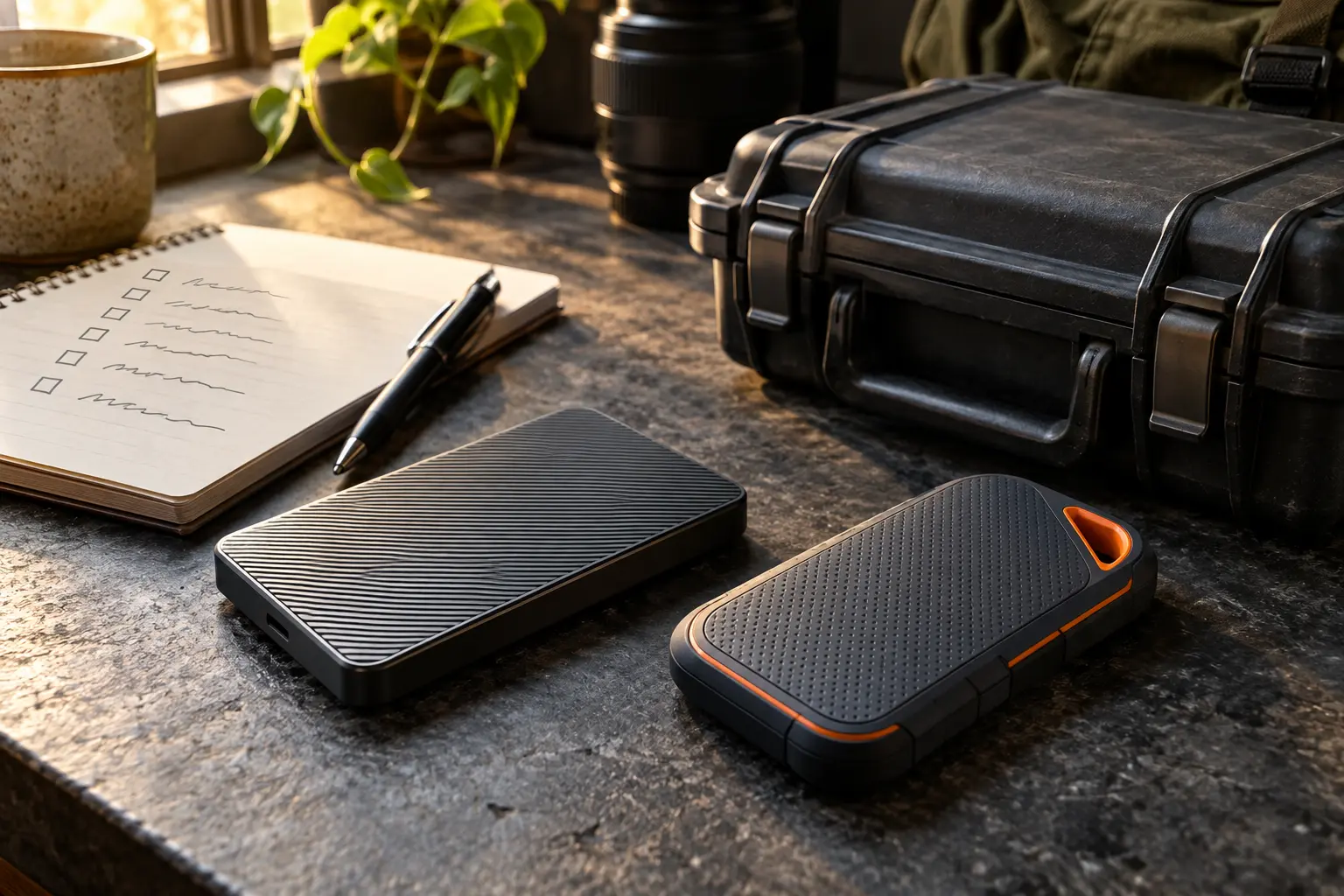
Prepared with AI assistance. Examples and checklists are illustrative guidance, not hands-on test results or hiring guarantees. The accompanying image is an AI-generated editorial illustration.
Quick answer: Restore a small sample of files into a separate test folder, open them in the applications you use, and record what was recovered and how long it took. Do not delete your working files to prove that a backup exists.
A “backup completed” message tells you that a process finished. It does not demonstrate that you can locate the right version, sign in during a disruption or open the restored project. A short restore drill helps uncover those gaps while the original files are still available.
CISA’s ransomware guidance recommends testing backup procedures regularly. The exercise below is a limited personal or small-team file check, not a full disaster-recovery test.
Define the failure you are practising for
Start with one scenario: an accidentally deleted document, a damaged project file or loss of access to a laptop. Each asks a different question. Restoring a single file version does not prove that an entire computer can be recovered.
Also distinguish synchronisation from independent recovery. A synchronised folder may reflect changes and deletions across devices. Version history or a recycle bin can help in some situations, but the available recovery depends on the service, plan and retention settings.
Select a small, representative sample
| Sample | What to verify |
|---|---|
| A recent document | Correct content and expected version |
| A spreadsheet | Formulas, sheets and required linked data |
| An image or short video | It opens and renders or plays correctly |
| A project folder | Supporting assets and references are present |
| An older version, where available | You can identify and recover the intended revision |
Use non-sensitive files where possible. If the backup contains work data, use the approved device, account and destination. Do not move business files to a personal service for convenience.
Run the drill without replacing originals
- Create a separate destination. Use a clearly named folder such as
Restore-Test-2026-09-26, outside any location where a test change could overwrite the working copy. - Locate the backup. Confirm the backup date, source and files selected.
- Choose a supported restore-copy option. Read the tool’s confirmation carefully. If the only available option replaces originals, use a disposable practice file or obtain appropriate technical help.
- Recover the sample. Note the start time, any login requirements and errors.
- Open every restored file. Do not stop at seeing filenames in a folder.
- Compare the content. Check important paragraphs, formulas, media duration and project dependencies against the intended version.
- Record the outcome. Include what worked, what failed and the follow-up owner.
What a useful test record looks like
Illustrative entry: “Five files restored to a separate folder from the previous evening’s backup. Four opened correctly. The video project opened but one linked audio file was missing. Follow-up: include the source-audio folder in the backup and repeat the project restore.”
That result is valuable even though the test did not fully pass. It identifies a concrete gap. Calling the backup “verified” without noting the missing dependency would hide the most important finding.
Test access as well as files
Could you reach the backup if the usual laptop were unavailable? Check the documented recovery route for account access and encryption keys without exposing secrets in your test notes. An encrypted backup is useful only if its legitimate recovery process remains available.
Keep any recovery material in an appropriate protected location, separate from a device whose loss is part of the scenario. For a team, confirm that recovery does not depend solely on one absent person.
Understand the limits of version history
Microsoft documents restoring previous file versions in OneDrive. That is one useful recovery feature, not proof that all files or all historical versions are retained indefinitely. Check the current documentation and your account’s settings before relying on a particular recovery window.
During a practice exercise, inspect the available version first. Avoid rolling back a live shared folder merely to test a feature. A small disposable test document is usually a better way to learn the controls.
Decide when to repeat the drill
Choose a cadence that fits how often important files change and how costly a loss would be. Repeat after changing backup software, moving storage, adding a new project type or discovering a failed restore. A successful sample is evidence about that sample and date; it is not a permanent guarantee.
Your next step
Restore one document and one project folder this week. Fix the first gap you find, repeat that part of the test, and keep the recovery steps somewhere you can access when the main device is unavailable.
Sources and further reading
Sources checked during preparation on 26 September 2026. Product features and policies can change; consult the current source for your situation.