Affiliate disclosure: As an Amazon Associate I earn from qualifying purchases. Shopping buttons open Amazon.com searches; check the exact item and regional delivery before buying.
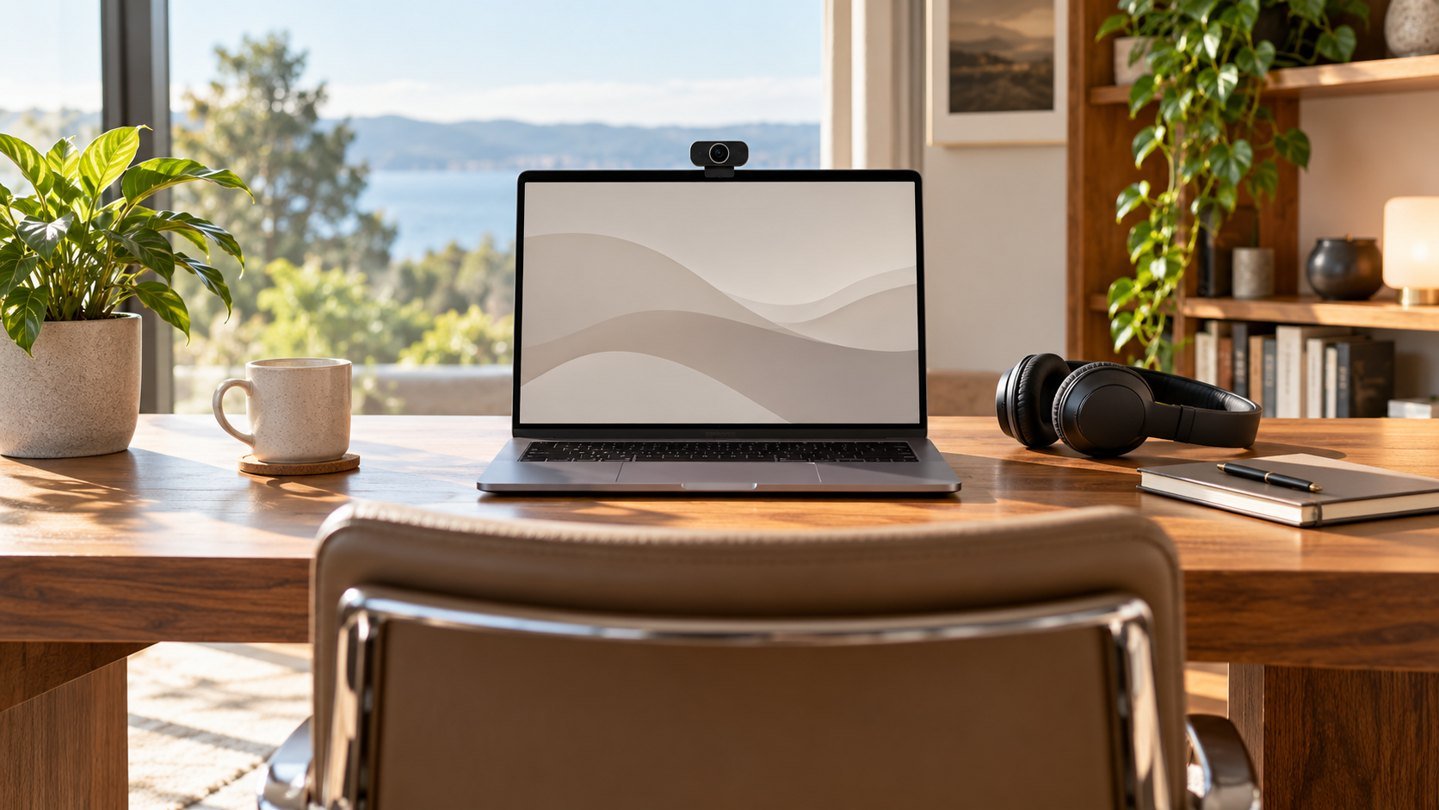
Prepared with AI assistance. Practical examples are illustrative, not hands-on test results. The featured image is an AI-generated editorial illustration of generic equipment, not an exact branded product photograph.
Interview preparation should leave you thinking about the conversation, not the webcam. A short rehearsal with the actual meeting setup can remove avoidable distractions. You do not need a studio; you need clear communication and a reliable way to reconnect if something fails.
Minutes 0–5: verify the invitation
Check the time zone, meeting platform and joining instructions. Confirm which account you should use and whether the session requires an application or permits a browser. Install or update required software early enough to test it. Avoid making unnecessary system changes immediately before the interview.
Keep the invitation and the recruiter’s contact details somewhere accessible if the laptop connection fails. Do not share the private meeting link publicly or upload it into unrelated tools.
Minutes 5–10: test the sound
Select the intended microphone and output inside the meeting application. Record a short private introduction or use the platform’s available test function. Listen for intelligibility, background distractions and whether your volume changes when you look at notes.
Try the headset you already own before shopping. A familiar wired headset can reduce the number of things you need to manage. Check its connector and cable reach. If using wireless equipment, charge it and know how to switch to a backup.
Minutes 10–15: set the picture
Place the camera near your normal eye line and frame enough space that small movements do not cut off your head. Face a useful light source and check the background for private documents or distracting items. If a virtual background looks unstable, try a simpler real background or a permitted blur effect.
Test at the likely interview time. Evening light can differ from a daytime rehearsal. Our lighting guide explains adjustments to try before buying a new camera.
Minutes 15–20: prepare your workspace
Close unrelated tabs and silence unnecessary notifications. Keep a short list of examples from your actual experience near the screen. Use prompts rather than a full script so you can listen and respond naturally.
If screen sharing is expected, practise selecting the right application window and stopping the share. Remove confidential work material from view. Open any permitted portfolio examples beforehand and confirm that links or files work.
Minutes 20–25: rehearse one answer
Answer a likely question in your own words for one or two minutes. Check whether you look comfortable and can hear yourself clearly. Do not spend the rehearsal perfecting every gesture; identify one adjustment that helps communication and make it.
AI can help generate practice questions from a public job description. Check that the questions fit the role and prepare truthful examples. Do not invent experience or rely on hidden live answers during the interview.
Minutes 25–30: practise the fallback
Know how to rejoin the meeting, where the contact details are and whether an alternative connection is available. If you use a phone as a backup, test the meeting app and audio route in advance. Avoid connecting two active microphones and speakers in the same room during a call.
| Problem | Prepared response |
|---|---|
| Video freezes | Follow platform guidance and rejoin if needed |
| Laptop disconnects | Use the prepared contact or backup device |
| Screen share exposes the wrong window | Stop sharing and select again |
| Unexpected noise | Briefly explain and move or mute when appropriate |
If you truly need equipment
Shortlist a webcam only after testing the built-in camera with better lighting. The Logitech Brio 500 is one candidate covered in our separate guide. For audio, compare the exact Jabra Evolve2 40 SE connector and variant with your computer. Neither purchase guarantees a better interview outcome.
Buy early enough to test returns, software compatibility and comfort. An unfamiliar accessory arriving on the interview morning adds work when you need less of it.
Common questions
Should I look at the camera all the time?
Use the camera naturally while speaking, but allow yourself to look at the interviewer and notes. The aim is an engaged conversation.
Is a headset unprofessional?
Clear audio and comfort matter more than hiding the equipment. Choose a tidy setup that works reliably.
What is the most useful upgrade?
Fix the weakest tested part of your setup. That may be lighting, microphone position or preparation rather than a new device.
Explore suitable equipment
These are options to investigate, not a ranked list of tested winners. Specifications, compatibility and availability can change. For readers outside the US, compare local delivery, warranty and total cost.
Keep building your setup
- Logitech Brio 500: Is This Webcam Enough for Work Calls?
- Jabra Evolve2 40 SE: A Headset Buying Guide for Remote Work
- Video-Call Lighting for Glasses: Fix Glare and Backlighting
- USB Headset vs Desktop Microphone: Which Fits Your Work?