Affiliate disclosure: As an Amazon Associate I earn from qualifying purchases. Shopping buttons open Amazon.com searches; check the exact item and regional delivery before buying.
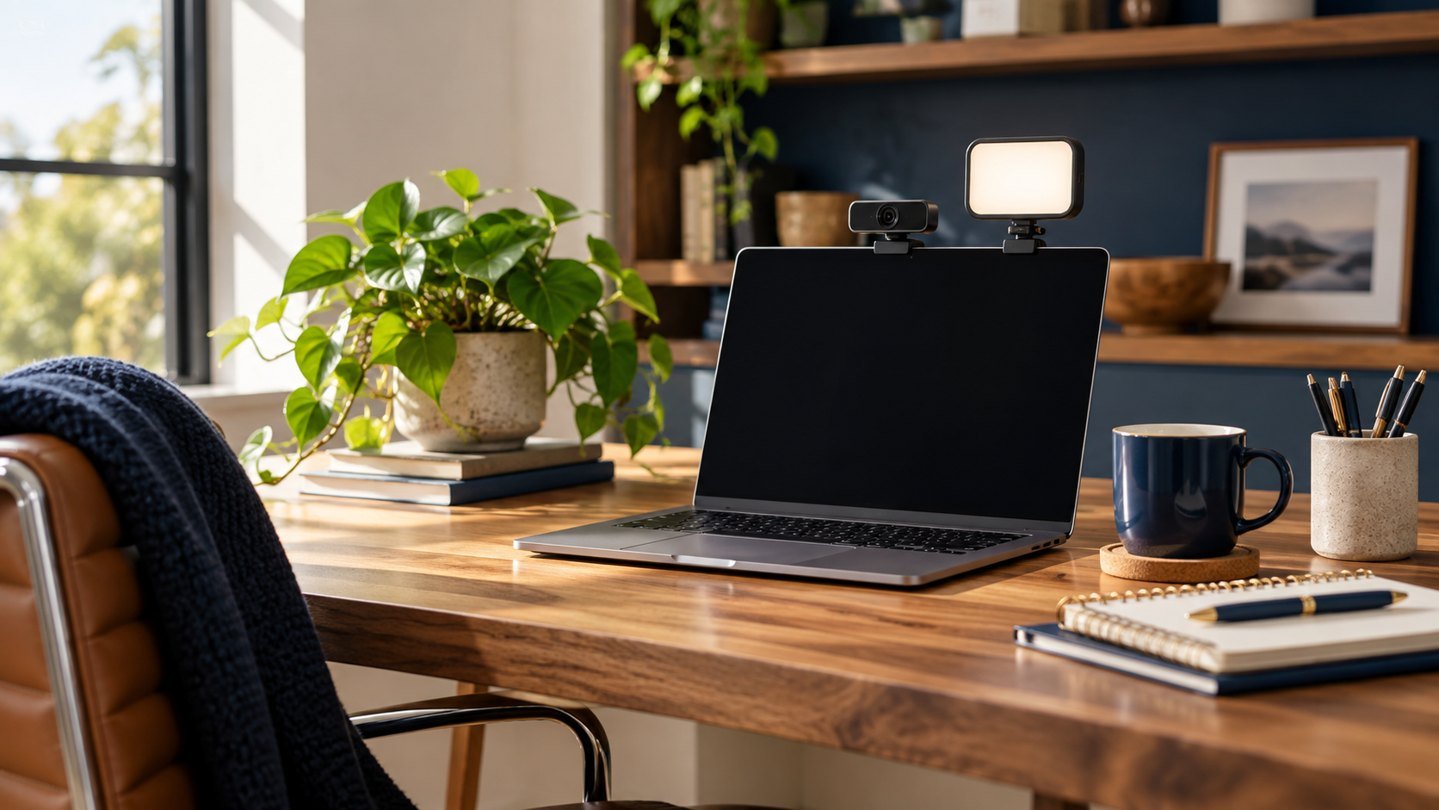
Prepared with AI assistance. Practical examples are illustrative, not hands-on test results. The featured image is an AI-generated editorial illustration of generic equipment, not an exact branded product photograph.
Quick answer: The Logitech Brio 500 is a candidate for regular work calls when your laptop camera’s position or image is limiting your setup. Its appeal is meeting-focused features rather than chasing the highest resolution. Improve camera position and room lighting before deciding that new hardware is necessary.
A professional video call starts with a clear view of your face, understandable audio and a background that does not compete for attention. A webcam can help, but it cannot make every room or connection look good automatically.
This guide considers where the Brio 500 fits and what to check before buying. It is a research-based buying guide, not a hands-on image-quality comparison.
What the Brio 500 offers
Logitech describes the Brio 500 as a Full HD 1080p webcam with automatic light correction, auto-framing and Show Mode. Its product page states that RightSight auto-framing requires Logi Tune and that Logi Tune is not available for ChromeOS. Software availability matters if that feature is a major reason for your purchase.
Treat the manufacturer’s features as a starting point for evaluation. Your room, application settings and network connection influence the video other participants receive.
Fix the free problems first
Open your meeting application’s camera preview at the time of day you usually take calls. Move a bright window out from directly behind you. Raise or reposition your existing camera so the view feels natural. Remove the most distracting objects visible behind your chair.
Record a short sample after each change. If the result is already good enough, you may not need a new camera. If your laptop screen must stay low while your camera needs to sit higher, a separate webcam becomes a more practical upgrade.
FitOnear’s webcam and lighting guide covers the wider setup. Think of the camera as one part of that arrangement.
Why resolution is only one buying criterion
A large resolution number does not tell you how conveniently a camera mounts, whether your application uses its full capabilities or whether its software runs on your computer. For ordinary meetings, a well-positioned camera that behaves predictably can be more useful than unused capture modes.
Start with your actual meeting application and the kind of calls you make. Presenting a design sample, interviewing for a job and attending a weekly team update can have different framing needs.
| Problem you see | First thing to investigate |
|---|---|
| Face appears dark | Light direction and background brightness |
| View is unflattering | Camera position and distance |
| Image changes during a call | Automatic settings and application behavior |
| Call looks worse than local preview | Meeting settings and network conditions |
| Voice is difficult to understand | Microphone placement and audio setup |
Check software and mounting before buying
If you cannot install Logi Tune on a work computer, do not buy assuming every advanced feature will be available. Ask your IT team about approved software and compare your exact operating-system version with current requirements.
Inspect the top edge of your monitor or laptop and consider where the camera will sit. If you already use a monitor light bar, check that both accessories can be positioned without blocking each other. A tidy desk photograph is not proof that two mounts fit together.
Confirm the connection type, cable arrangement and package contents in the selected listing. Avoid buying adapters before checking what you actually need.
Audio deserves its own decision
A webcam microphone can be convenient, but camera placement is not always ideal microphone placement. When your work involves long calls, customer support or a shared room, compare your existing headset with the webcam audio using a short test recording.
Do not change the camera and microphone at the same time without testing. Otherwise, when a colleague reports an improvement or a problem, you will not know which change caused it.
Better meetings also need useful follow-through. FitOnear’s meeting-note best practices explains how to turn a conversation into decisions and assigned actions.
A simple first-day test
- Position the camera and check its mount is secure.
- Select the correct video device in your meeting application.
- Compare a preview with your normal room lighting and a second lighting arrangement.
- If supported, try automatic framing and decide whether you prefer it on or off.
- Make a short test call and ask someone about both picture and sound.
- Confirm that reconnecting after a restart restores the setup you expect.
Frequently asked questions
Do I need a 4K webcam for office meetings?
Not automatically. Start with your application, connection, lighting and intended use. Higher capture resolution alone does not guarantee a better meeting experience.
Does auto-framing work on every computer?
No. For this model, check Logitech’s current software requirements. The manufacturer specifically ties RightSight auto-framing to Logi Tune.
Should I replace a working laptop camera?
Only if an external camera solves a problem you can identify, such as placement or a feature your current camera lacks.
The buying decision
Choose the Brio 500 if you need a separate, meeting-focused camera and its software fits your computer. Keep your existing camera if better placement and lighting already solve the problem. Spend on the limitation you can see, not the specification you feel you ought to have.
Product information checked September 19, 2026. Specifications, versions and availability can change. Confirm the exact item, seller, delivery destination and return terms before ordering. For readers outside the United States, check shipping, regional compatibility and local warranty coverage.