Affiliate disclosure: As an Amazon Associate I earn from qualifying purchases. Shopping buttons open Amazon.com searches; check the exact item and regional delivery before buying.
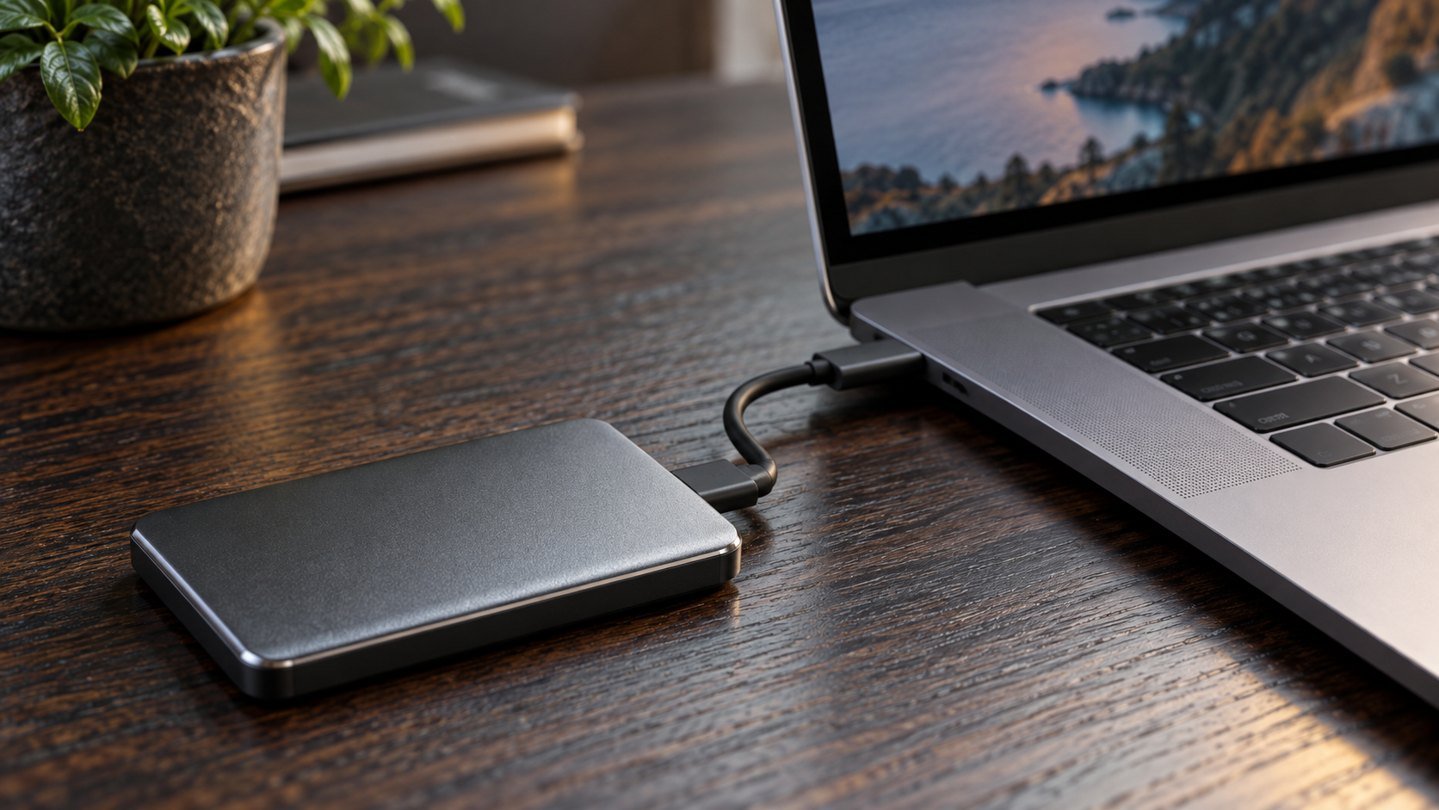
Prepared with AI assistance. Practical examples are illustrative, not hands-on test results. The featured image is an AI-generated editorial illustration of generic equipment, not an exact branded product photograph.
A fast external SSD can feel surprisingly slow when connected through the wrong cable or when copying a very different workload from a benchmark. The useful question is not whether the drive reaches the largest number on the box. It is which part of your actual transfer is limiting it.
Protect the files before experimenting
Keep a separate copy of important material before troubleshooting. Do not format a drive as an initial speed fix. If the drive disconnects, reports errors or contains your only copy of valuable files, prioritise preserving the data and follow the manufacturer’s support guidance.
Measure one repeatable task
Choose a noncritical folder representative of your work. Note its approximate size, whether it contains a few large files or many small ones, and the time to copy. Keep the source, destination and workload consistent when comparing connections.
Copying from a slow source cannot demonstrate the full speed of a faster destination. A folder containing thousands of small files is also a different task from one large video. Record what you tested so that the next result has meaning.
Remove one possible bottleneck at a time
| Change | What the comparison can reveal |
|---|---|
| Use a documented suitable cable | Whether the original cable limits the connection |
| Try another supported computer port | Whether the first port differs in capability |
| Pause unrelated transfers | Whether competing activity affects the task |
| Compare a large file and a small-file folder | Whether workload explains the difference |
Do not change every variable together. If a new cable and a different port improve the result, repeat one change at a time to understand which mattered. Keep the drive on a clear surface and follow its operating guidance.
Read speed specifications correctly
Samsung advertises the T7 Shield with maximum sequential read and write figures. Those are manufacturer specifications, not a promise for every file copy. The drive, host interface, cable, source storage and workload all contribute to the observed result.
The model remains a candidate for portable storage, but a new T7 Shield will not automatically fix a slow connection path. If your current drive performs acceptably when connected directly, a better hub or cable arrangement may be the more relevant purchase.
Check units before comparing numbers
Connection speeds are often described in gigabits per second, while file-copy tools may display megabytes per second. These are different units; eight bits make one byte. Protocol overhead and actual device performance mean a simple unit conversion is not a guaranteed transfer target.
Use elapsed time for your normal task as a second measure. If an export folder copies quickly enough for your routine, chasing a theoretical maximum may have little practical value.
Plan capacity as well as speed
Check how much data you store today and how much you add each month. Include space for the version history or backups your chosen software maintains. Do not buy capacity solely to postpone deciding which duplicate exports can be removed.
Before deleting duplicates, identify the authoritative copy and make sure it opens. Generated images, editing projects and final exports can have similar names while serving different purposes. A project file without its linked media may not be a complete archive.
When to seek product support
Document the drive model, computer, operating system, cable, connection path and exact symptom. A reproducible description is more useful than saying the drive is slow. Follow official firmware and diagnostic instructions, especially if the problem began after an update.
Keep the purchase and warranty details. Do not assume that a rugged enclosure protects against every fault or against losing the drive itself.
Common questions
Is a faster advertised SSD always a better upgrade?
Only when your computer and workflow can benefit from it. Establish the bottleneck first.
Should I reformat for speed?
Not as a first step. Formatting can erase files and may not address the cause. Use the operating system and manufacturer guidance after protecting the data.
Is an SSD also my backup?
It is a backup destination only when it holds a separate usable copy. Moving your only files onto it does not create redundancy.
Explore suitable equipment
These are options to investigate, not a ranked list of tested winners. Specifications, compatibility and availability can change. For readers outside the US, compare local delivery, warranty and total cost.
Keep building your setup
- Samsung T7 Shield: An External SSD Guide for Everyday Work
- A Simple Backup System for AI Images, Videos and Client Files
- USB-C Monitor Not Working? Check These 7 Things First