
When an automation creates duplicates, compare the source record, run history, and destination result before replaying anything. The same symptom can come from repeated triggers, two active workflows, a retry after a timeout, or a loop caused by the automation’s own update.
This guide is for people maintaining small business workflows in services such as Zapier or Power Automate. It explains the diagnosis and design decisions without assuming a specific connector. Do not experiment on live payments, customer messages, or other consequential actions; use a harmless test destination.
Contain the effect before investigating
If the workflow is repeatedly sending or creating something, pause the relevant automation through the approved process. Record what you paused and who owns the decision to resume it. Preserve run history and destination records so you can understand what happened.
Do not immediately delete duplicate records in bulk. Some may have been edited or used by another process. First identify which records are duplicates, what depends on them, and who may approve cleanup. Prevention and correction are separate tasks.
For the wider operational baseline, see FitOnear’s remote-work security checklist. If a new tool is being proposed as the fix, use the software cost framework to include maintenance and recovery work, not just subscription price.
Identify the business item, not just the run
A run ID identifies one execution. A source record ID identifies the item being processed. Two different run IDs can legitimately refer to the same source item. To diagnose duplication, you need both.
Imagine an invented form submission with ID FORM-4821. The intended effect is one task in a support queue. If two runs both create a task for that submission, the problem is not solved by observing that each run ID is unique.
Collect the source ID, source event time, workflow name, run ID, action name, destination ID, and outcome. Compare two duplicate outcomes side by side. That comparison often reveals whether one workflow ran twice or two workflows each ran once.
| Observation | Likely direction | Next check |
|---|---|---|
| Same source ID, different workflow names | Overlapping workflows | Find copied or old active versions. |
| Same source ID, timeout followed by replay | Ambiguous action result | Check whether the first action succeeded at the destination. |
| Each created row triggers another run | Feedback loop | Compare trigger scope with write destination. |
| Different source IDs, identical content | Repeated source submissions | Check the source application’s behavior. |
Understand what the platform does and does not deduplicate
Zapier’s deduplication documentation distinguishes trigger behavior from action behavior. Polling triggers compare item identifiers, while destination actions depend on the connected app. It also notes that separate Zaps using the same trigger are not deduplicated against one another.
Microsoft’s Power Automate trigger troubleshooting advises designing for idempotency: a workflow should account for duplicate inputs. In plain language, repeating the same intended request should not create another unintended business effect.
These statements do not mean every connector offers the same controls. Read the documentation for the exact trigger and action. A filter may prevent irrelevant events, but it does not necessarily make a create action safe to replay.
Check the four common causes
1. Two workflows listen to the same event
Look for an old version left enabled after a replacement was published. Check shared ownership and team folders, not only the workflows visible in your personal list. Record the intended owner before disabling anything another team may use.
A naming convention can help distinguish draft and active workflows, but a name alone does not enforce state. Keep a small register showing the production workflow, purpose, owner, and replacement history.
2. An update retriggers the process
A workflow triggered by any change to a row may run again when it writes its own status back to that row. Narrow the trigger where supported, distinguish relevant business changes from bookkeeping changes, and test the resulting behavior.
Do not add a status flag without considering timing. Two runs may both read “not processed” before either updates it. The flag is useful evidence, but a simple read-then-write sequence is not automatically an atomic guarantee.
3. A timeout creates an uncertain outcome
A request can reach the destination and complete while the automation fails to receive the response. Replaying the create action can then produce a second record. Zapier’s duplicate-data troubleshooting guide specifically identifies replay after timeouts as a possible cause.
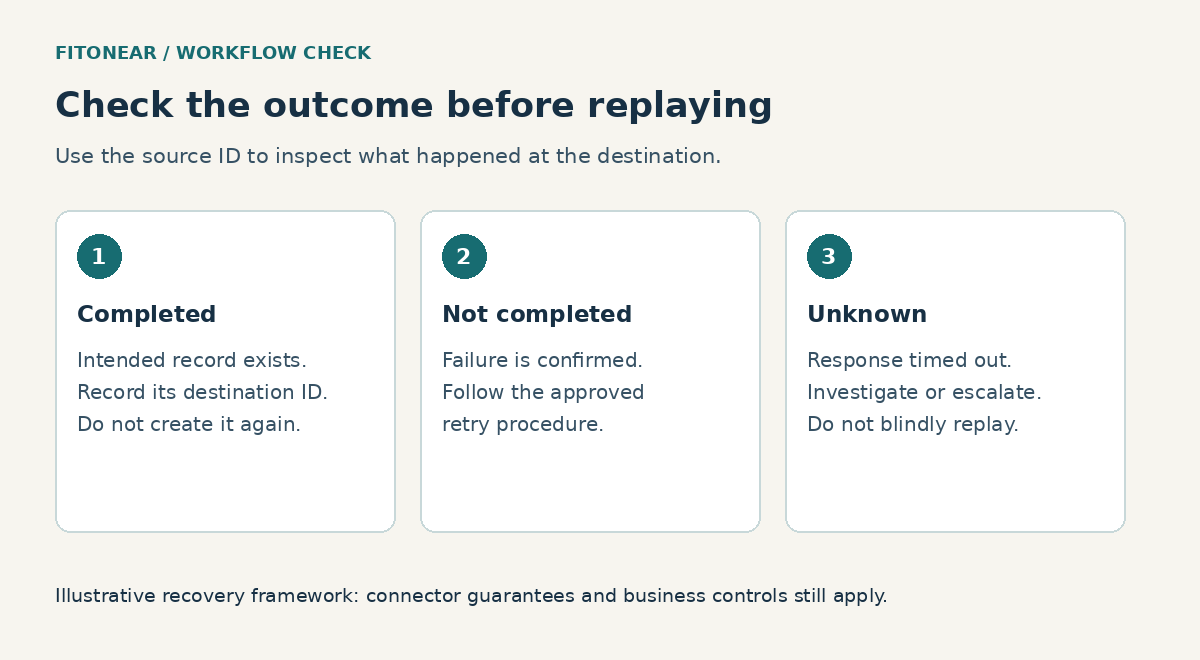
Check the destination before replaying. Search by a stable source identifier where possible. If the result is uncertain and the effect matters, route it to review rather than assume that an error message means nothing happened.
4. The source generated separate submissions
Two form submissions with different IDs may represent either a genuine second request or an accidental repeat. Do not deduplicate solely by a person’s name or message text. Decide what makes a business request unique and how intentional repeats should be represented.
Design a stable operation key
An operation key identifies the intended effect. For the fictional task-creation example, form:FORM-4821:create-support-task:v1 is more useful than the current time. A retry uses the same key; a genuinely new submission uses a different one.
Do not use a random value generated on each run as the duplicate-prevention key. It makes every retry look new. Avoid using only an email address if the same person may legitimately submit several requests.
Where the destination supports an idempotency key or unique external ID, use its documented mechanism. Where it supports finding a record by source ID, that can help prevent or diagnose duplicates. A find-then-create sequence can still race under concurrent execution unless the destination enforces uniqueness or the operation is otherwise coordinated.
A spreadsheet can be adequate for a low-volume review log, but do not assume it provides the same atomic uniqueness guarantees as a database constraint. For important workflows, ask the platform owner to verify the behavior under simultaneous runs.
Track outcome states, not just a done flag
A useful conceptual record distinguishes received, processing, completed, failed, and unknown outcome. “Unknown” is particularly important after a timeout. It means investigate the destination before retrying the business action.
Marking an item complete before the destination succeeds can lose work. Marking it complete only afterward can leave an uncertainty window if the final bookkeeping step fails. The design needs a recovery rule for that window, not just a more optimistic label.
For a small team, the recovery rule may be manual review with the source ID and destination search. That can be a sensible tradeoff when the action is consequential and volume is modest. Automation does not need to hide uncertainty to be useful.
Run a small replay test
Use a test queue with no real recipients. The following cases form an original acceptance checklist for the fictional form-to-task workflow.
- New submission: one source ID creates one task.
- Repeated event: the same source ID does not create a second task.
- Different submission: a new source ID creates its own task even if the wording matches.
- Concurrent delivery: two near-simultaneous copies of the same event do not create two effects, or are safely routed for review if the system cannot guarantee this.
- Uncertain response: recovery checks the destination before replaying.
- Self-update: recording completion does not start an endless loop.
Changing concurrency settings alone is not proof of duplicate prevention. It may serialize some executions but does not automatically prevent sequential retries, separate workflows, or source-level duplicates. Review platform limits before changing those controls.
Define how long duplicate-prevention records remain useful
An operation key is useful only while the system can recognize it. Ask how long the source may retry events and how long your workflow retains completed-operation records. If old events can be replayed after those records disappear, the same business action may be treated as new again.
Do not choose a retention period solely to reduce storage. Align it with the source’s documented replay behavior, the destination’s guarantees, and your organization’s data-retention rules. Store only the information needed to recognize and reconcile the operation; the key log does not need to become another copy of the full customer payload.
Also decide what happens when the business rule changes. Adding a version suffix to a key can intentionally create a new operation, but it can also allow old inputs to be processed again. Treat that as a migration decision. Test whether historical records should be skipped, updated, or reviewed before enabling a revised workflow on an existing queue.
Document the recovery route before resuming
Write who can pause the workflow, where run history lives, how to identify the destination record, and when a retry is allowed. The SOP drafting guide helps turn those decisions into usable instructions; the handover guide helps transfer responsibility when the owner is absent.
FitOnear’s workflow tool selection guide is useful if the current system cannot expose enough history or ownership information. A tool should make failures understandable as well as automate the normal case.
Resume with a small monitored batch. Confirm both intended outcomes and absence of extra effects. Keep the investigation record so the next maintainer can explain why the duplicate-prevention rule exists.
Prepared with AI assistance and authoritative sources reviewed September 30, 2026. Examples are illustrative, not hands-on test results. The featured image is an AI-generated editorial illustration, not a product screenshot.