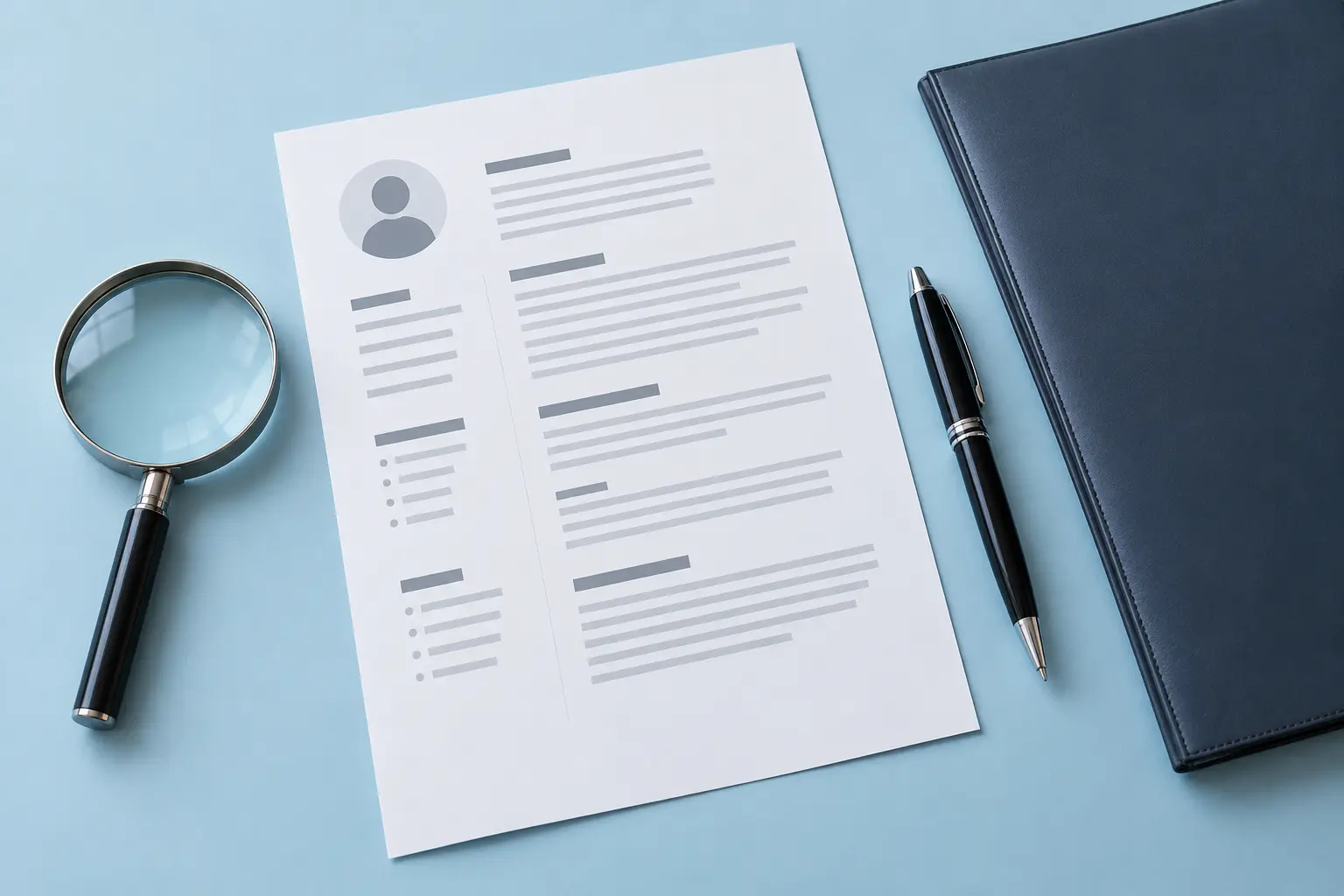
Prepared with AI assistance. Examples and checklists are illustrative guidance, not hands-on test results or hiring guarantees. The accompanying image is an AI-generated editorial illustration.
Quick answer: Follow the employer’s requested file format. If both PDF and DOCX are accepted, use a clean version whose text reads in the correct order, then check the application fields after uploading. Neither extension guarantees successful parsing or an interview.
A resume can look excellent on your screen and still produce a scrambled application form. The practical question is therefore more useful than “Which format always beats the ATS?”: can this particular document communicate your experience clearly in this particular application?
This guide gives you a repeatable preflight check. It tests the file you will submit, rather than assigning an invented universal ATS score.
Separate three different problems
- Upload acceptance: Does the portal accept the file type and size?
- Parsing: Does it extract names, jobs, dates and skills correctly?
- Selection: Does the employer consider you a suitable candidate?
Passing the first two checks cannot prove the third. Greenhouse’s documentation confirms that parsing can fail or misinterpret formatting; that is evidence about its parser, not a rule for every hiring platform.
Use this format decision table
| Situation | Practical choice | Check before submitting |
|---|---|---|
| The vacancy specifies DOCX | Submit DOCX | Reopen the saved file and confirm page breaks |
| The vacancy specifies PDF | Submit a text-based PDF | Select and copy the text; avoid a scanned image |
| Both are allowed | Use the version with the cleanest extraction and display | Inspect autofilled fields in the actual portal |
| The upload fails | Check the stated size and format restrictions first | Try an accepted alternative only if permitted |
Run a five-step document check
1. Start with the application instructions
Read the upload field and vacancy page before exporting. Keep one editable source document so corrections remain consistent. A sensible filename is GivenName-FamilyName-Resume.pdf; a long chain of “final” and version labels is unnecessary.
2. Inspect the document at normal reading size
Use recognisable headings such as Experience, Education and Skills. As a conservative starting point, keep essential details in the main text flow, with a straightforward single-column layout. Do not communicate proficiency only through stars, bars or icons. This is a robustness choice, not a claim that every complex design fails.
3. Copy the text into a plain-text editor
Open the exported PDF, select the text and paste it into a plain-text editor. Check whether each role remains beside its employer and dates. Look for missing characters, duplicated lines, merged columns and contact details appearing halfway through a job description. For DOCX, inspect the saved document and use a plain-text copy as a second view.
A readable extraction is encouraging, but it is only a local diagnostic. A recruiter’s system may extract or interpret the same file differently.
4. Review the portal’s autofill
After uploading, compare each available field with the resume. Correct dates, titles, qualifications and contact information before submitting. If the portal offers no preview, do not assume that means either success or failure. Keep the submitted file and confirmation so you know exactly what you sent.
5. Check the final version once more
Open the attachment you selected, not a different copy in your working folder. Confirm that links work, there are no tracked changes or private comments, and the contact address is current. Only then submit.
Worked example: when the date floats away
Illustrative scenario: A two-column resume places dates in a narrow sidebar. The copied text lists all dates first, followed by all employers. The applicant moves each date into the same text block as its role, exports again and repeats the check. The second extraction keeps the information together.
The improvement is specific: the reading order is clearer. It does not demonstrate a higher interview probability or certify compatibility with all applicant tracking systems.
Fix the symptom you can observe
- Nothing can be selected in the PDF: Export again from the editable document with text preserved.
- Contact details disappear: Move them into ordinary body text and retest.
- Dates attach to the wrong job: Simplify alignment and place each date beside its role.
- The file is rejected: Read the portal’s restrictions before repeatedly renaming the same file.
- Autofill is incomplete: Correct editable fields; do not invent information to satisfy the form.
Common questions
Is PDF always safer?
No. It can preserve appearance, but the employer’s requirements and the actual file structure matter more than a blanket preference.
Should I upload my resume to several free checkers?
You do not need to. First use local checks. Before sharing a document with a third-party service, read its data handling terms and remove information the check does not need.
Your next step
Keep a small submission checklist with four boxes: accepted format, readable text, correct autofill and correct attachment. It is a more useful quality control than chasing a promised “100% ATS pass.”
Sources and further reading
Sources checked during preparation on 26 September 2026. Product features and policies can change; consult the current source for your situation.