
Research checked 19 October 2026. Prepared with AI assistance. This is an original verification exercise, not a hands-on benchmark or a privacy certification. The featured image is an AI-generated editorial illustration; the checklist graphic is a designed summary of the steps below.
Quick answer: Download the required model first, identify which parts of your app use cloud services, then disconnect and try new prompts and a new sample document. Restart the app while still offline and repeat. Passing shows that the tested workflow worked without a connection at that time; it does not prove the whole software stack never transmits data.
Your laptop can display an AI chat window while the actual model runs somewhere else. It can also run the model locally while sending a document to an online parser. That makes “local AI” a useful starting point, but an incomplete description of the journey your information takes.
The interesting test is not whether the app opens in airplane mode. It is whether the exact work you care about still functions, with fresh inputs, after you remove the network. This guide gives you a small experiment you can repeat before buying hardware or trusting a label.
The model is only one layer
Imagine asking an assistant to summarise a photographed receipt. The language model, image recognition, document storage and search may be separate components. A local model does not automatically make every surrounding component local.
| Layer | Question | Useful evidence |
|---|---|---|
| Model inference | Which exact model answers this request, and where does it run? | Model identifier, app setting and runtime status |
| Document processing | Where are PDF text, images or audio extracted? | Feature documentation and a sample-file test |
| Retrieval | Is the assistant searching your device, a hosted index or the web? | Configured search provider and source list |
| Storage and sync | Where do chats, uploads and backups go? | Storage settings and current product terms |
| Optional services | Are cloud fallback, web search or extensions enabled? | Explicit settings and connection requirements |
Ollama supports local operation and cloud features. Its official FAQ documents a local-only configuration, including OLLAMA_NO_CLOUD=1, and says the service must be restarted after configuration changes. Its cloud documentation explains the hosted route. Read these alongside the documentation for your chat interface: an Ollama setting does not configure every third-party application that can connect to it.
Prepare a test that teaches you something
Use invented information. Create a short text file containing three facts: “The project codename is Amber Kite. The sample delivery day is Thursday. The review owner is Mira.” Save it under a name you have never used in the app. Do not use work records, passwords or private family documents for this exercise.
While online, install the app from its official source and finish the model download. Record the exact model name and app version. A missing download can make a genuinely local setup fail offline, so distinguish installation requirements from everyday inference.
Choose your success criteria in advance: for example, answer a new writing prompt, extract the three invented facts and repeat after restart. The 20-minute label is a planning allowance for the checks once installation is complete; model downloads and troubleshooting can take longer.
The six-check offline experiment
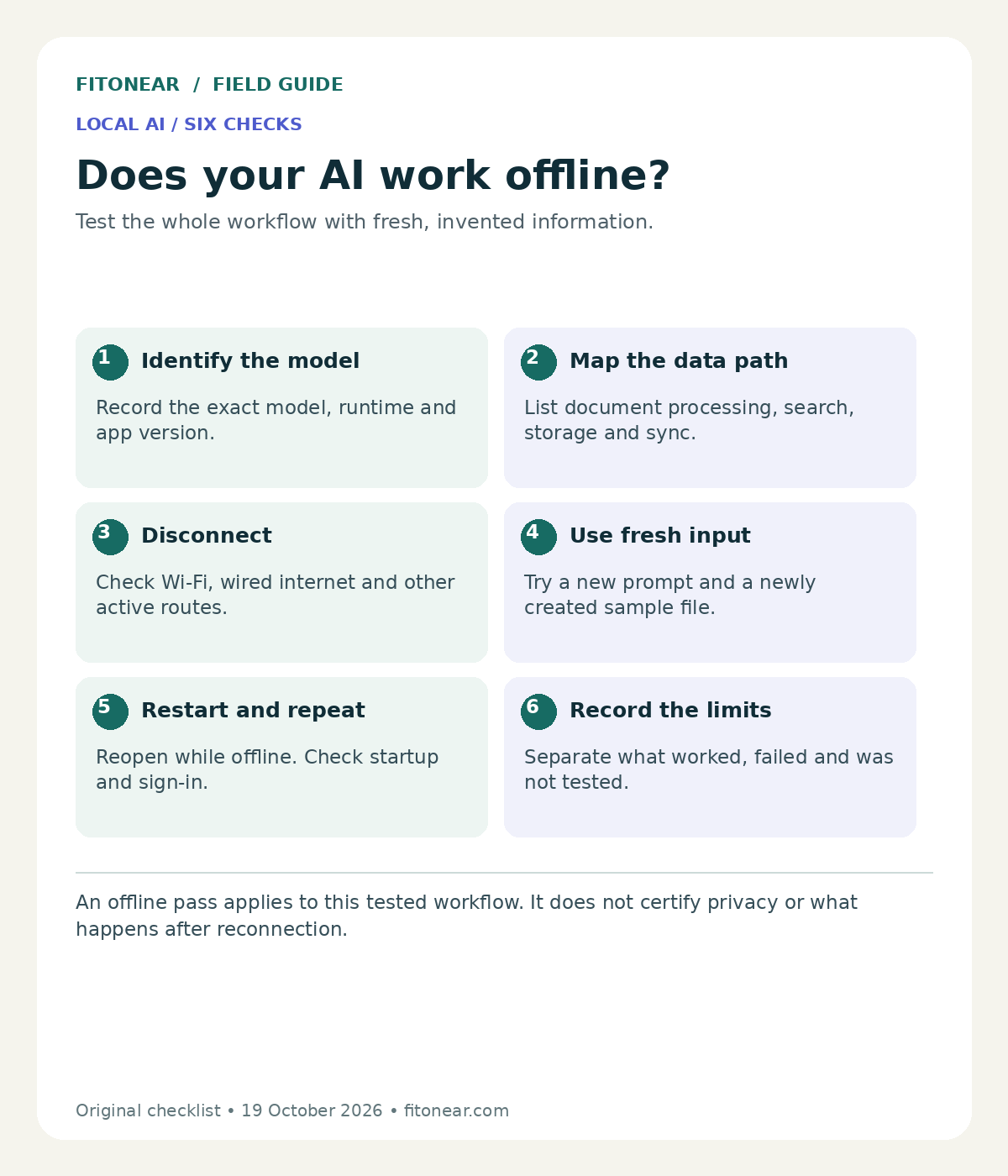
- Identify the model: note the selected model and provider. If using Ollama, its documented
ollama pscommand can help inspect loaded models. It does not audit every network connection. - Map the data path: list the chat interface, model runtime and any document, search or sync services. Disable optional online features through their supported settings where available.
- Disconnect: use the device’s normal controls to disconnect Wi-Fi, wired networking and other active internet routes. Airplane mode alone may not cover a wired connection.
- Try fresh inputs: start a new conversation, ask a new writing question and import the invented text file. Ask for the codename, day and owner. A previously generated answer is not a meaningful fresh test.
- Restart and repeat: close and reopen the app while still disconnected. Confirm the selected model and try a different short prompt. Record any sign-in or startup dependency.
- Record limits: list each feature that worked, failed or was not tested. Reconnect only after you have finished recording the offline behaviour.
Sample prompt: “From the attached sample file, return only the project codename, delivery day and review owner. If any field is missing, write ‘not found’. Do not search the web.” Confirm the returned values against the file yourself.
What the result actually tells you
| Observation | Reasonable conclusion | Next check |
|---|---|---|
| Fresh chat works offline | The tested chat path did not require an active connection | Test document features separately |
| Chat works, document import fails | The document path has an unmet requirement | Check supported formats and processing dependencies |
| Everything stops at restart | Startup or authentication may need connectivity | Read documented offline startup behaviour |
| Output is slow or incomplete | Usability or resource limits need investigation | Repeat with a shorter input and inspect resource use |
Working offline does not establish what happens when you reconnect. Logs or sync features might behave differently, and other software on the device remains outside this exercise. If a formal data-handling assurance is required, involve your organisation’s technical and security owners rather than treating a home experiment as certification.
Copy the experiment log
App and version:
Model identifier and runtime:
Document / search / sync services:
Features disabled:
Fresh prompt result:
Sample-file extraction result:
Restart result:
Time to a usable answer:
Failed or untested features:
What this test does NOT establish:
Decision: useful / needs work / unsuitable
Before buying a more powerful laptop, define a quality threshold and test the model you can already run. More context also increases resource demands; Ollama’s context-length documentation explains how context relates to memory requirements. There is no universal RAM number that makes every model and workload practical.
Common questions
Does local mean completely private?
No single label establishes that. Review the complete data path, app behaviour, storage and access controls. Our private AI checklist helps frame those questions.
Can I use the same model name in a local and cloud app?
Possibly, but names alone do not establish identical versions, quantisation, settings or execution location. Record the actual configuration instead of comparing labels.
What if I need web research as well?
Separate the tasks. Local drafting can be useful while web research requires a connection and source checking. Use the AI answer verification guide and the browser-agent acceptance tests for that part.
Next step: run the sample-file check before importing real work. Compare supervision and correction time using our AI evaluation framework, and protect useful local outputs with a backup restore test.